Settings
Manage your own account and your organization in the Dashboard: profile, password and sessions, connected AI apps, organization identity, OCPI business details, teams, billing, and usage.
Settings is the last area on the rail. The sidebar splits it in two:
| Section | Page | Route | What it does |
|---|---|---|---|
| Your account | Your preferences | /dashboard/account | Your profile and how the Dashboard looks |
| Your account | Security | /dashboard/account/security | Password, active sessions, and account deletion |
| Your account | Connected apps | /dashboard/account/connected-apps | AI apps you allowed to use OCPPLab through MCP |
| This organization | General | /dashboard/settings | Organization name, slug, ID, and analytics privacy |
| This organization | Business details | /dashboard/settings/business-details | Your OCPI party identity for roaming |
| This organization | Teams | /dashboard/settings/teams | Teams and their members |
| This organization | Billing | /dashboard/settings/billing | Subscription plan, payment, and invoices |
| This organization | Usage | /dashboard/settings/usage | Cloud charger-hours this billing cycle |
Your account pages change only your own user. This organization pages change the organization you have selected in the top bar, for every member. Some pages need the owner or admin role; plan-locked pages show a lock in the sidebar.
Your preferences
Path: Settings → Your preferences.
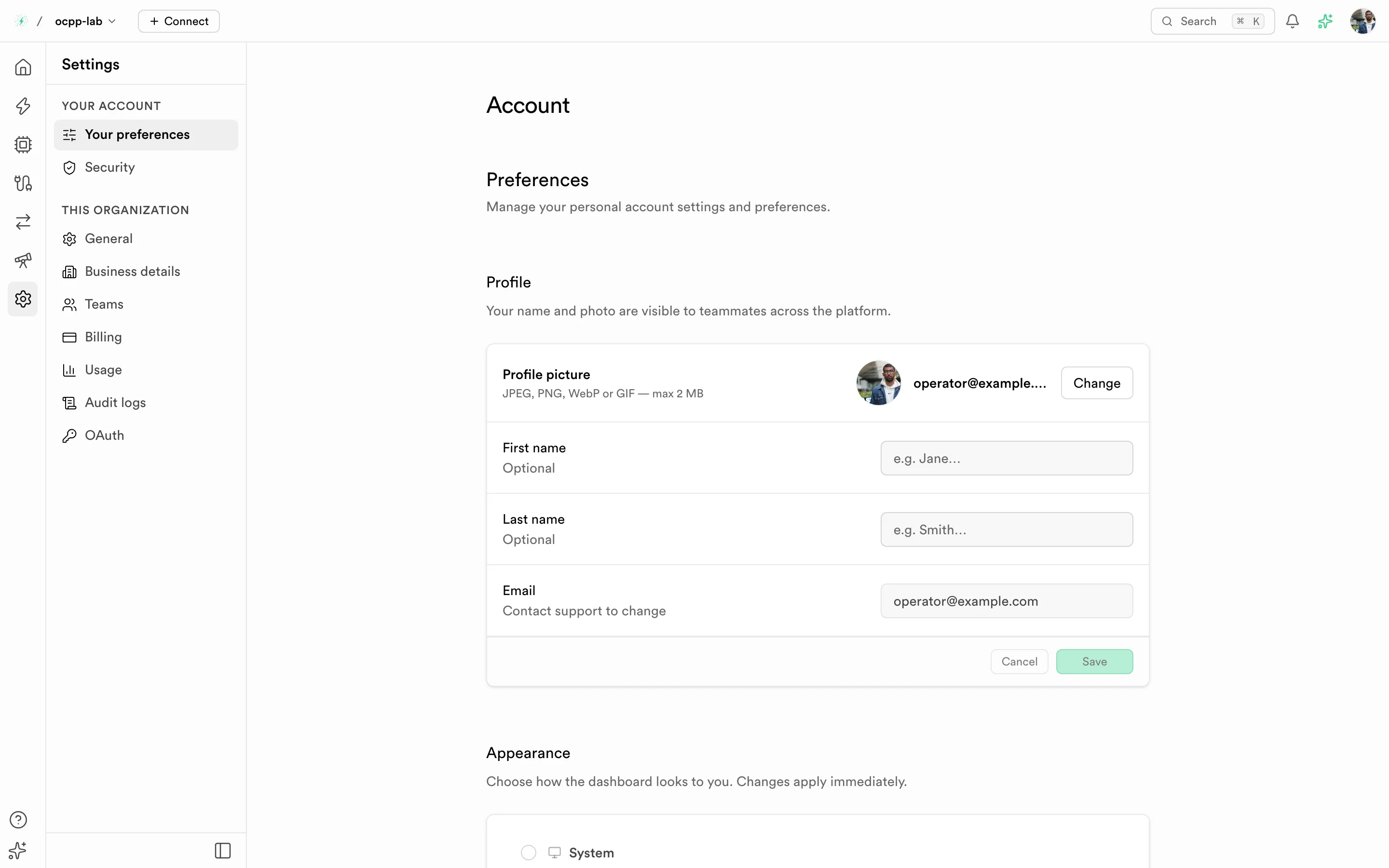
Your preferences — profile and appearance for your user only.
- Profile picture — JPEG, PNG, WebP, or GIF up to 2 MB
- First name and Last name — optional, shown to teammates
- Email — read-only; contact support to change it
- Appearance — System, Light, or Dark; applies immediately
Security
Path: Settings → Security.
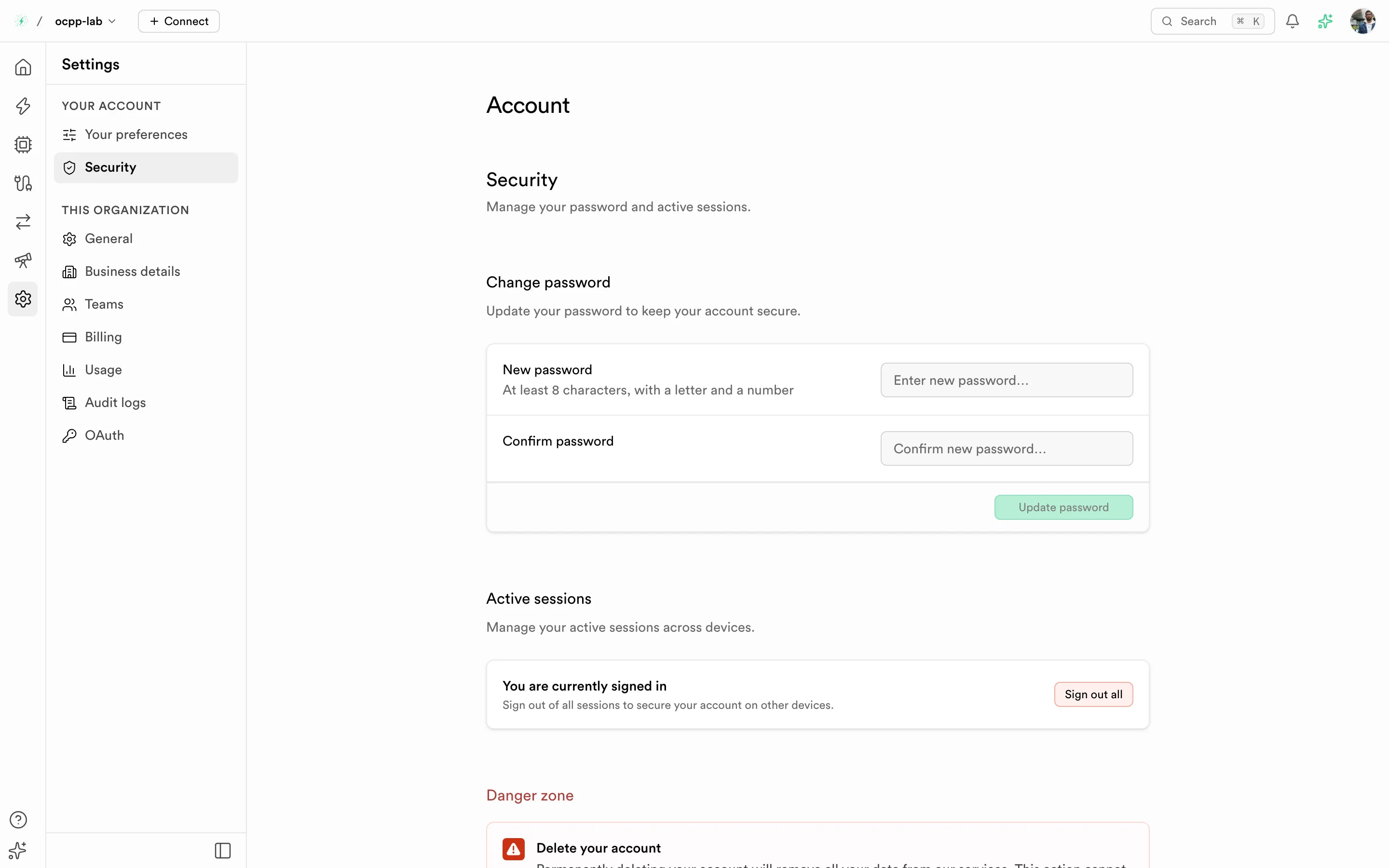
Security — change your password, sign out other sessions, or delete your account.
- Change password — at least 8 characters with a letter and a number. Select Update password.
- Active sessions — select Sign out all to end every session, including on other devices.
- Danger zone — Delete account permanently removes your user and your data. It cannot be undone.
Connected apps
Path: Settings → Connected apps.
AI apps such as Claude Code, Cursor, or ChatGPT can use OCPPLab through the MCP server. When you connect one, it opens the Dashboard so you can sign in and choose an organization. Connect Claude Code with:
claude mcp add --transport http ocpplab https://api.ocpplab.io/mcpThe table lists each app you approved, the organization it acts in, and when you connected it. Select Disconnect and confirm to remove an app. It can't refresh its access anymore and loses it within an hour. To use it again, connect it again and choose an organization.
General
Path: Settings → General.
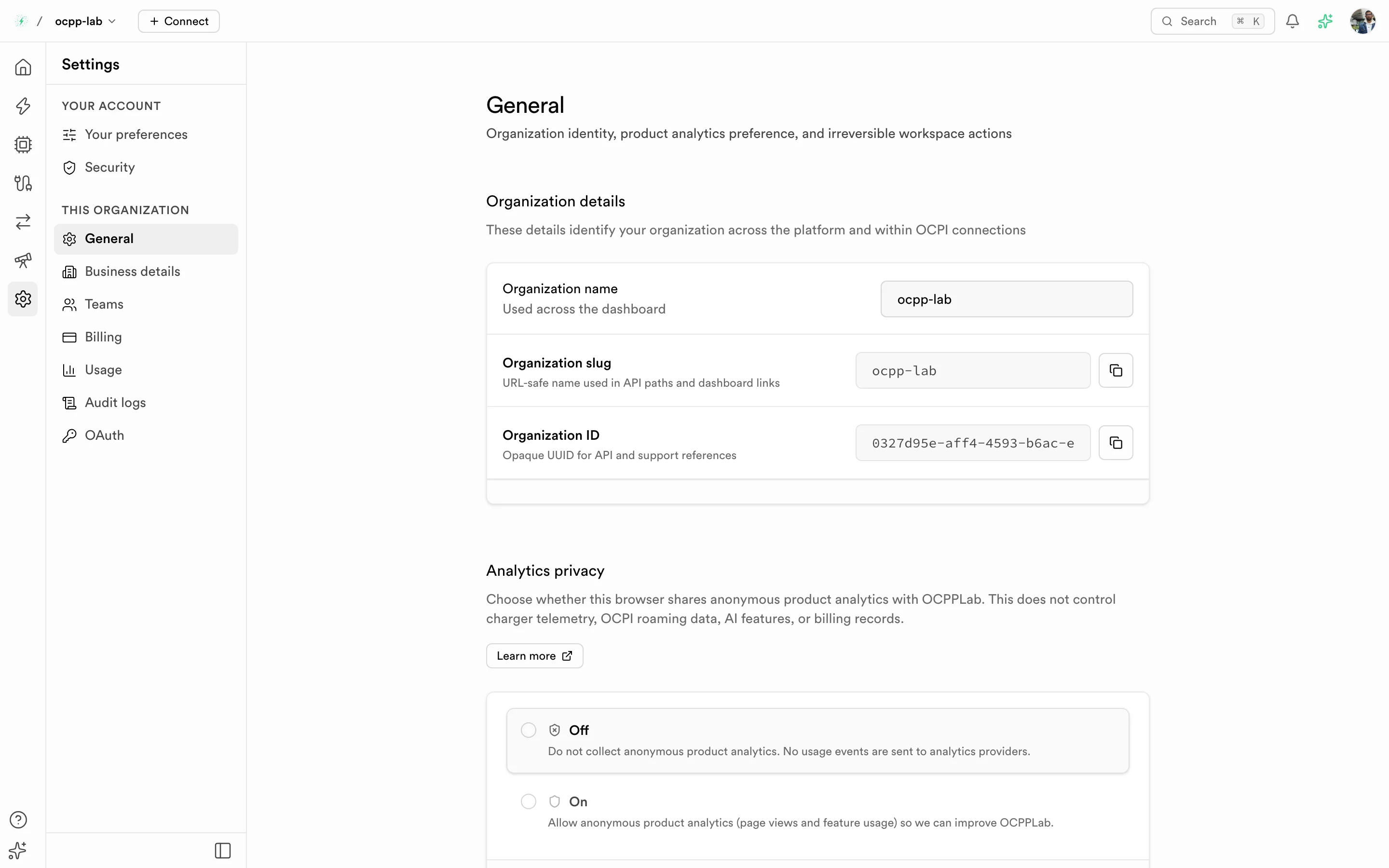
General — organization identity and the analytics choice for this browser.
| Field | What it is |
|---|---|
| Organization name | Shown across the Dashboard. Editable. |
| Organization slug | URL-safe name used in API paths, dashboard links, and your OCPP endpoint (wss://ocpp.ocpplab.io/ocpp/<slug>/…). Read-only; copy it. |
| Organization ID | UUID for API calls and support requests. Read-only; copy it. |
| Analytics privacy | Off or On for anonymous product analytics in this browser. It never controls charger telemetry, OCPI data, AI features, or billing records. |
Business details
Path: Settings → Business details. Older Roaming links to this page redirect here.
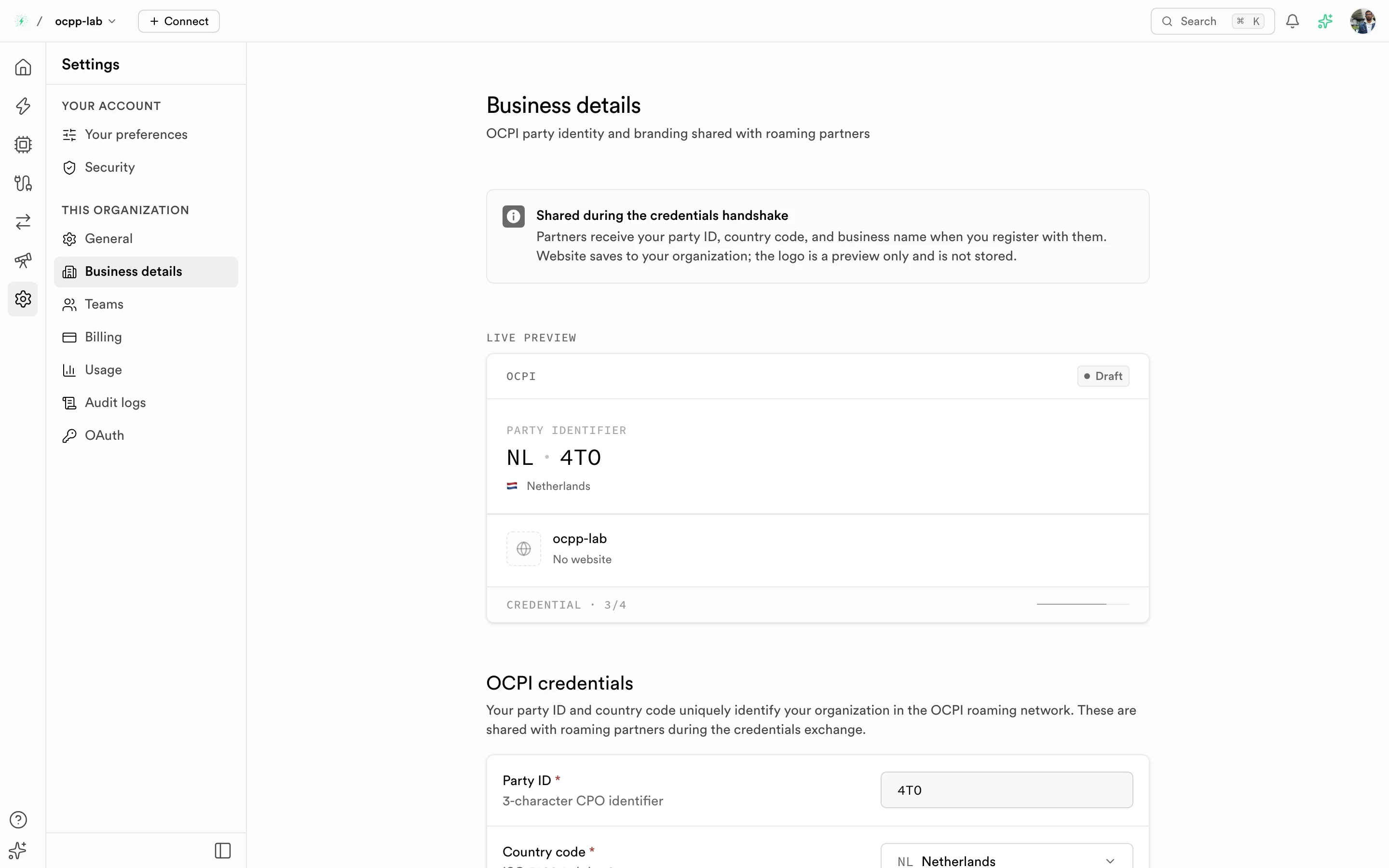
Business details — the identity partners receive during the OCPI credentials handshake, with a live preview.
Set these before you connect a roaming partner:
| Field | What it is |
|---|---|
| Party ID | Your 3-character OCPI party identifier, for example 4TO |
| Country code | ISO 3166-1 alpha-2 country of your party, for example NL |
| Business name | Required. Sent to partners with your party ID and country code. |
| Website | Optional. Saved to your organization. |
The logo is a preview only; it is not stored yet.
Teams
Path: Settings → Teams.
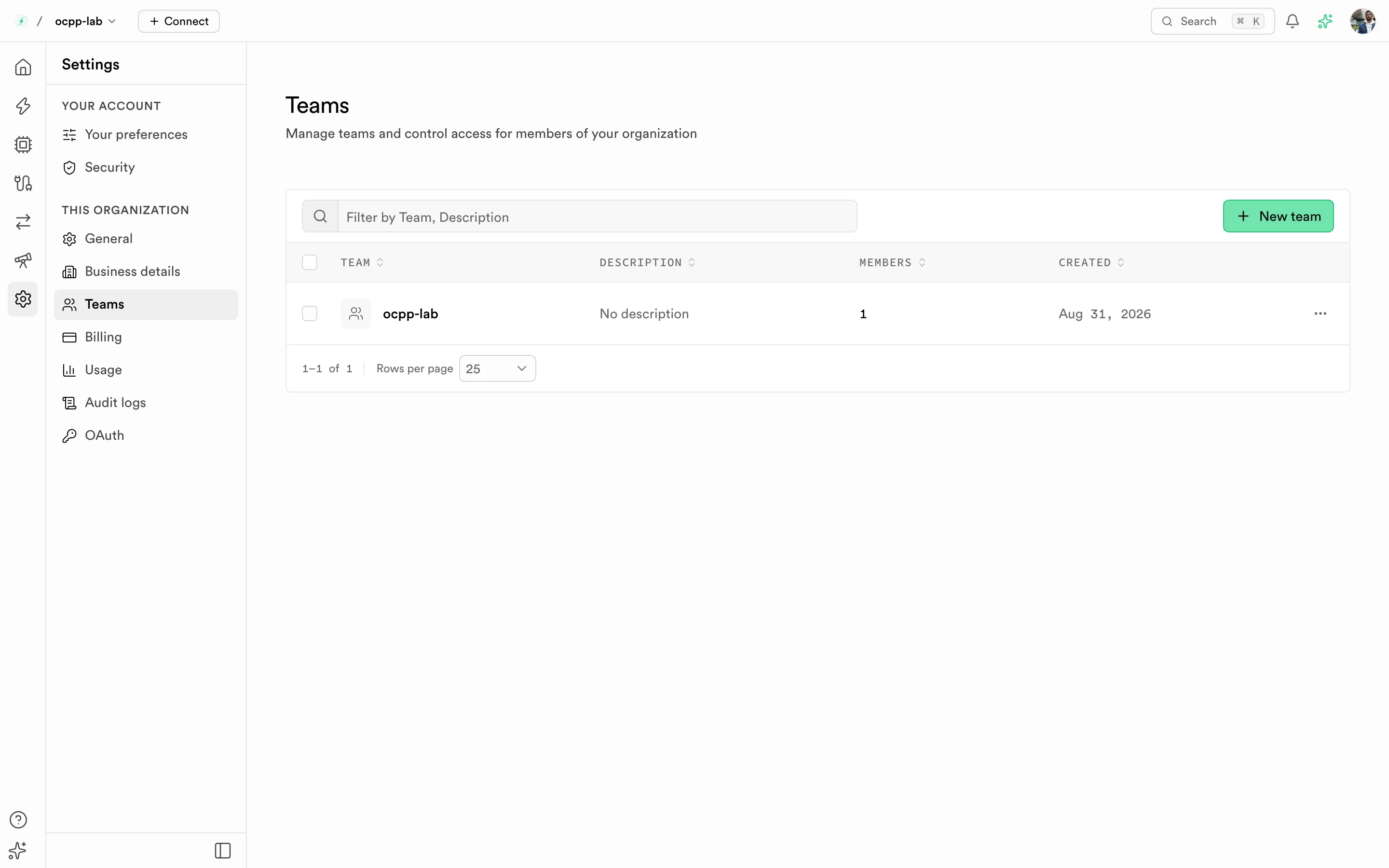
Teams — group members of your organization. Every organization starts with one team.
- Select New team and give it a name and an optional description.
- From the team, select Invite member, enter their email, and pick a role. The invitation email links to the team and expires in 7 days.
Billing
Path: Settings → Billing.
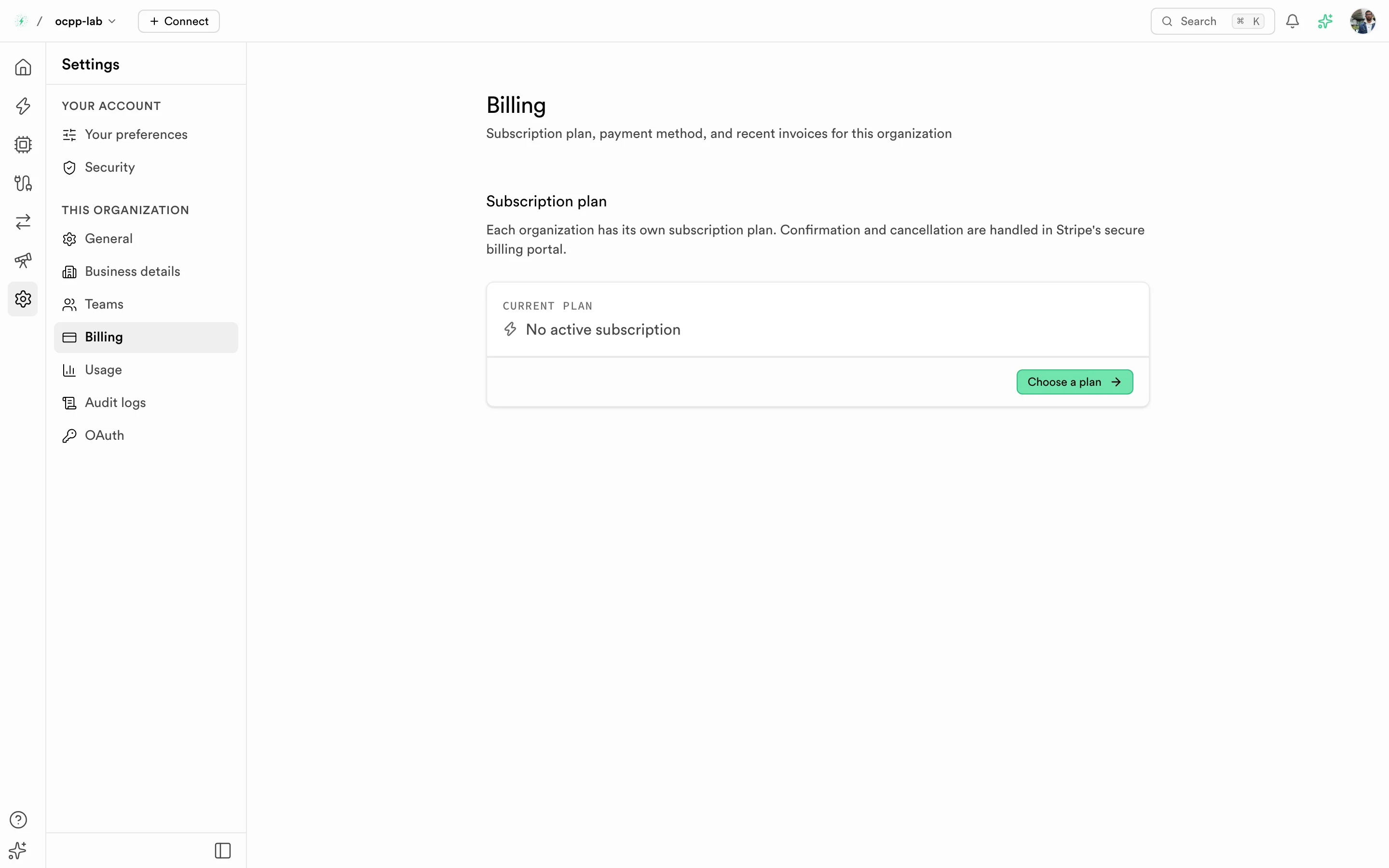
Billing — each organization has its own plan. Payment and cancellation happen in Stripe's billing portal.
Select Choose a plan to subscribe or change plan. Confirmation, payment method, invoices, and cancellation open in Stripe's secure billing portal.
Usage
Path: Settings → Usage.
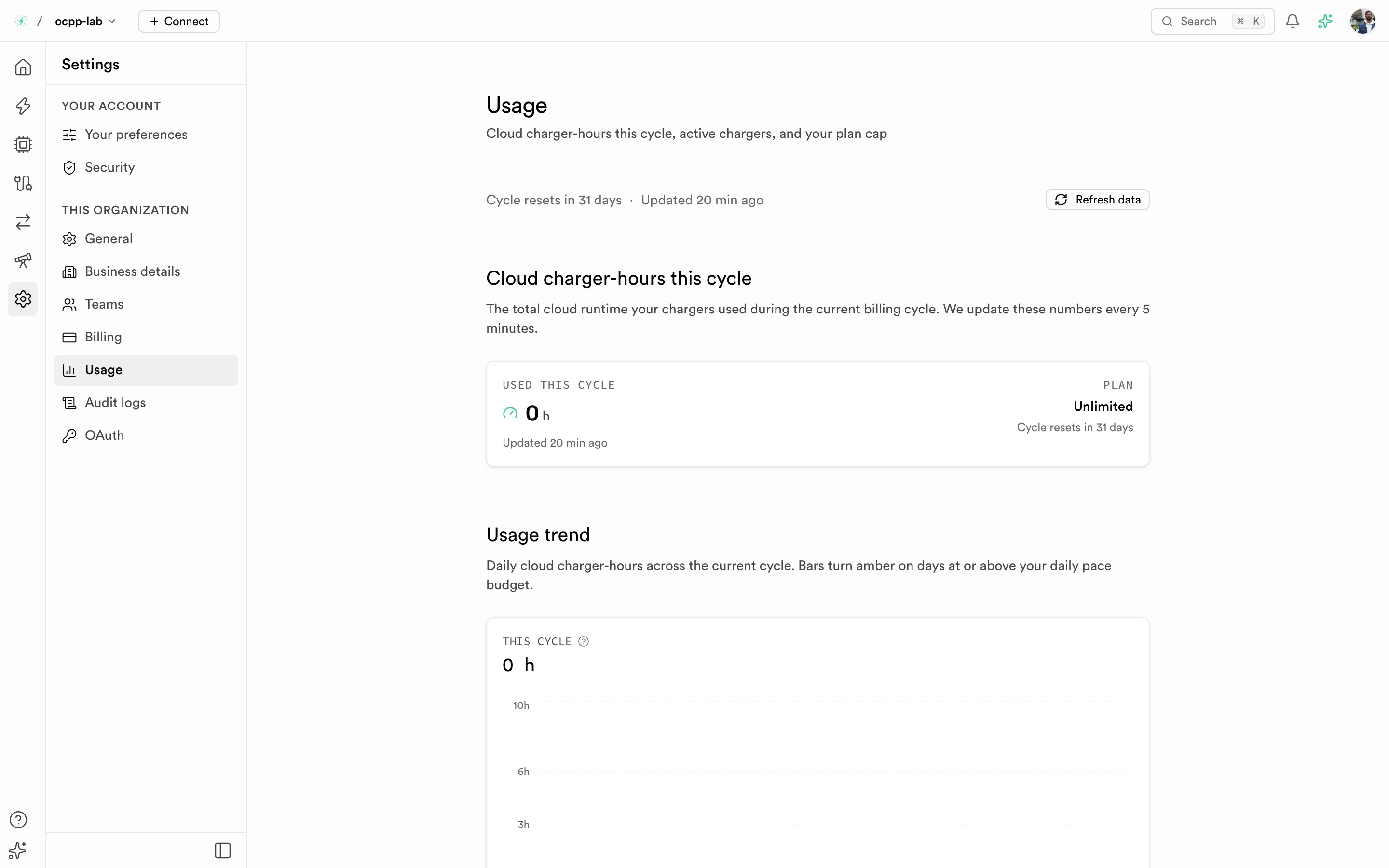
Usage — cloud charger-hours this billing cycle against your plan.
Cloud charger-hours is the total runtime of your cloud-run chargers (for example lab chargers) in the current billing cycle. Numbers update every 5 minutes; select Refresh data to reload. In Usage trend, bars turn amber on days at or above your daily pace budget.
Audit logs and OAuth
The proxy audit trail lives in the Logs area: Logs → Proxy audit (/dashboard/logs/audit). Older Settings → Audit logs links redirect there. See Logs.
OAuth and SSO are not available yet, so Settings has no OAuth page. Older OAuth links open General settings.
Related
- Roaming — uses your Business details
- Virtual charger — the main source of cloud charger-hours
- Logs — includes the proxy audit trail