Fleet chat
Dashboard home: ask questions about your fleet in plain language and get answers as tables, charts, and metrics.
Fleet chat is the Dashboard home and the first screen after sign-in. Ask a question about your organization's fleet and the answer comes back as short prose with tables, charts, and metrics built from your live OCPP, OCPI, and proxy data.
Path: /dashboard
Sidebar: Home
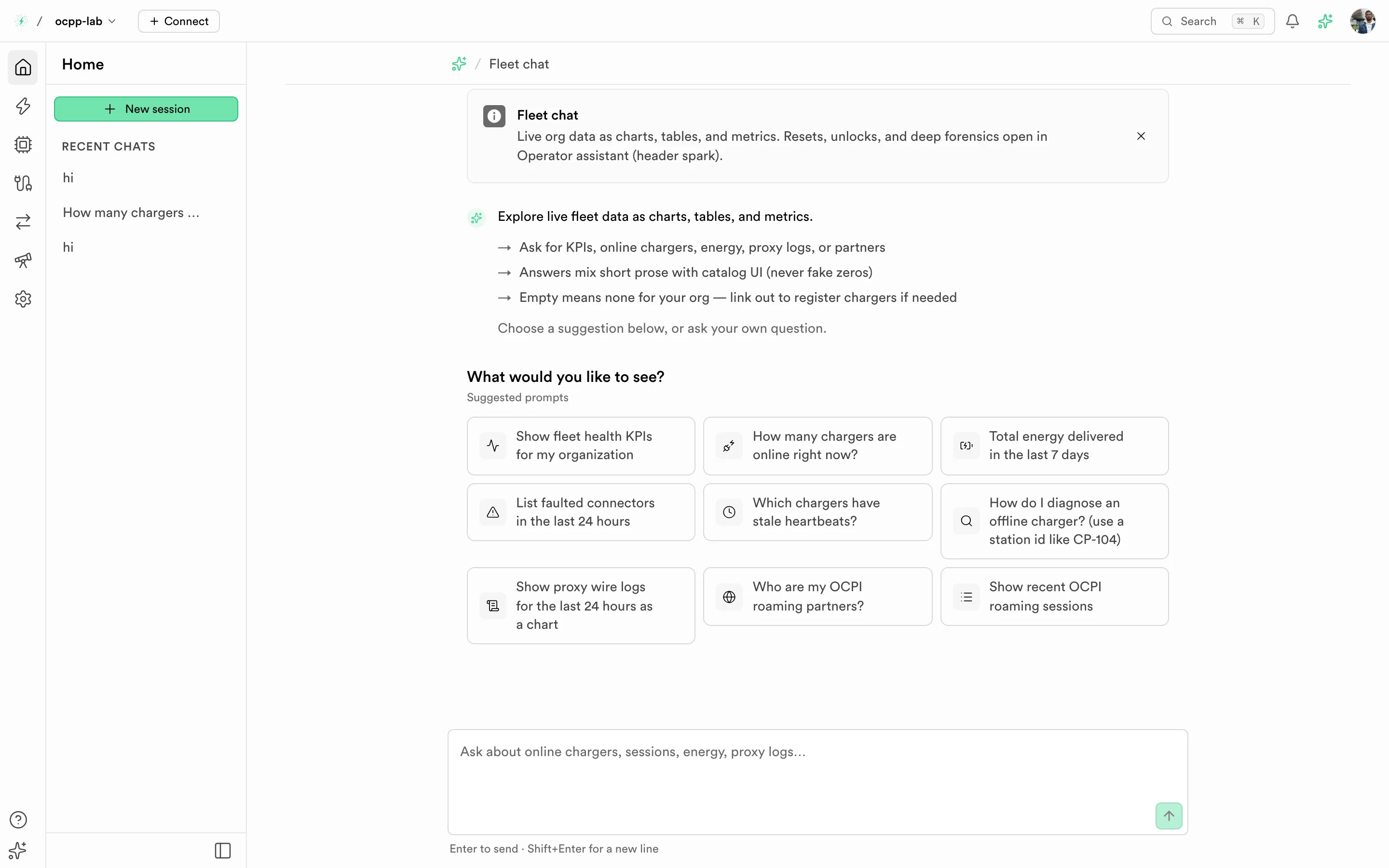
Fleet chat. Recent chats are in the left panel, suggested prompts start a new chat, and the composer is at the bottom.
Fleet chat is read-only. It reads your data; it never starts a session, changes a configuration, or sends a command to a charger.
What you see
| Element | What it does |
|---|---|
| New session | Starts a new chat |
| Recent chats | Your saved chats. Empty until you send a first message |
| Suggested prompts | Starting questions, for example How many chargers are online right now? |
| Composer | Type a question. Press Enter to send and Shift+Enter for a new line |
| Answer blocks | Tables, charts, and metrics rendered inside the answer |
Answers report only what your data contains. A value the platform has not measured reads as No data, never 0. When your organization has nothing to show, for example no chargers yet, the answer says so and links to the page where you can add them.
Ask a question
- Open the Dashboard. You land on Fleet chat.
- Select a suggested prompt, or type a question such as Which chargers have stale heartbeats?
- Read the answer. Charger IDs in result tables link to Charger detail.
- Ask a follow-up in the same chat. It keeps the earlier context.
- Reopen the chat later from Recent chats.
Fleet chat and the operator assistant
Both use the same spark icon, but they do different jobs.
| Fleet chat | Operator assistant | |
|---|---|---|
| Where | /dashboard | The spark button in the top bar opens a side panel on any page |
| Reads your fleet | Yes | Yes |
| Makes changes | No | Yes, after you confirm each action |
| Use it for | How many chargers went offline this week? | Resets, unlocks, and deeper investigation |
Related
- Managed chargers for a filterable fleet list
- Charger detail
- Logs