Charger detail
Inspect one managed charger: overview, uptime, connectors, charges, logs, OCPP configuration, firmware, certificates, and energy flow.
Charger detail is the page for one managed charge point. It shows the station's state in the header and splits everything else into tabs, each with its own URL you can share.
Path: /dashboard/chargers/{identity}, for example /dashboard/chargers/CP-MALL-A-001
Open it from: a charger identity on Managed chargers, the OCPP map, or a Fleet chat answer
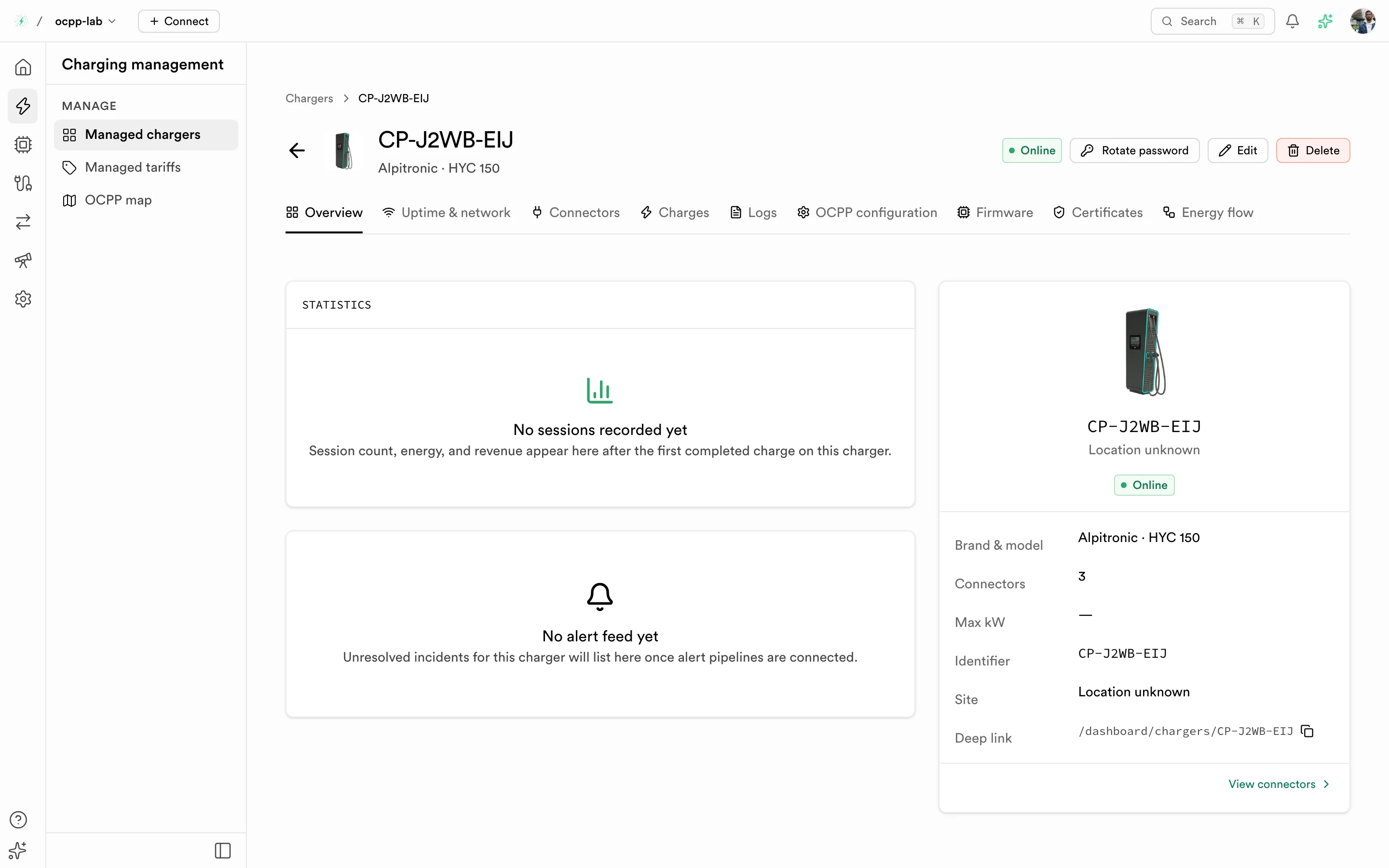
Charger detail. The header shows the connection state and actions; the tabs below split the station's data.
Header
| Element | What it does |
|---|---|
| Connection badge | Online, Offline, Stale, or Never connected. See Connection states |
| Rotate password | Replaces the station's gateway password after you confirm. A connected station is disconnected at once and can reconnect only after you configure the new password on it |
| Edit | Change the site, access, brand, model, and other registration fields |
| Delete | Removes the charger, its connectors, and its gateway registration after you confirm. The station can no longer connect. Past sessions stay in session history |
Tabs
| Tab | Path suffix | What it shows |
|---|---|---|
| Overview | (none) | Session statistics, alerts, and the station summary: brand and model, connectors, max power, identifier, site |
| Uptime & network | /uptime-network | Daily WebSocket connection history for the station |
| Connectors | /connectors | Each connector (and EVSE on OCPP 2.0.1 and 2.1) with its status, type, power, and last activity. Add connector maps a new physical plug |
| Charges | /charges | This station's charge sessions with state, energy, cost, start, and end |
| Logs | /logs | OCPP messages exchanged with this station only |
| OCPP configuration | /ocpp-configuration | Configuration keys reported by the charger. Get configuration asks the charger for its current values |
| Firmware | /firmware | Firmware version and status, available versions, and update history |
| Certificates | /certificates | Plug & Charge contract certificates. Empty until ISO 15118 support is detected for the charger |
| Energy flow | /energy-flow | Diagram of the station, its EVSEs and connectors, and a vehicle slot per connector. Charging connectors show live power and state of charge from recent meter values |
Empty sections say what is missing and when data will appear. A value the station has not reported shows —, never 0.
Common tasks
Check why a charger is offline
- Open the charger and check the header badge.
- Open Uptime & network to see when the connection dropped.
- Open Logs and look at the last frames before the drop.
- If the station never reconnects, see Charger will not connect.
Read the charger's configuration
- Open OCPP configuration and select Get configuration.
- Wait for the charger's answer. The keys appear in the table. Read-only keys show a lock.
- If no answer arrives, the page says the charger has not answered yet. Check that the charger is Online and registered with the right OCPP version.
Add a missing connector
- Open Connectors and select Add connector.
- Enter the connector identity, then choose its type and power.
- Select Add connector at the bottom of the sheet. The connector appears in the list.