Observability
Check OCPP and OCPI message health in the Dashboard, and send charger and roaming events to your own systems with webhooks.
Observability is the Dashboard area for traffic health and outbound events. The sidebar has two sections:
| Section | Page | Route | What it does |
|---|---|---|---|
| Health | Observability | /dashboard/observability | Message volume and health per source: your OCPP backend, lab chargers, and OCPI partners |
| Automation | Callbacks | /dashboard/webhooks | Webhook destinations that receive charger and roaming events |
| Automation | Webhook logs | /dashboard/webhooks/logs | Every delivery attempt with HTTP status |
Check message health
Path: Observability → Observability.
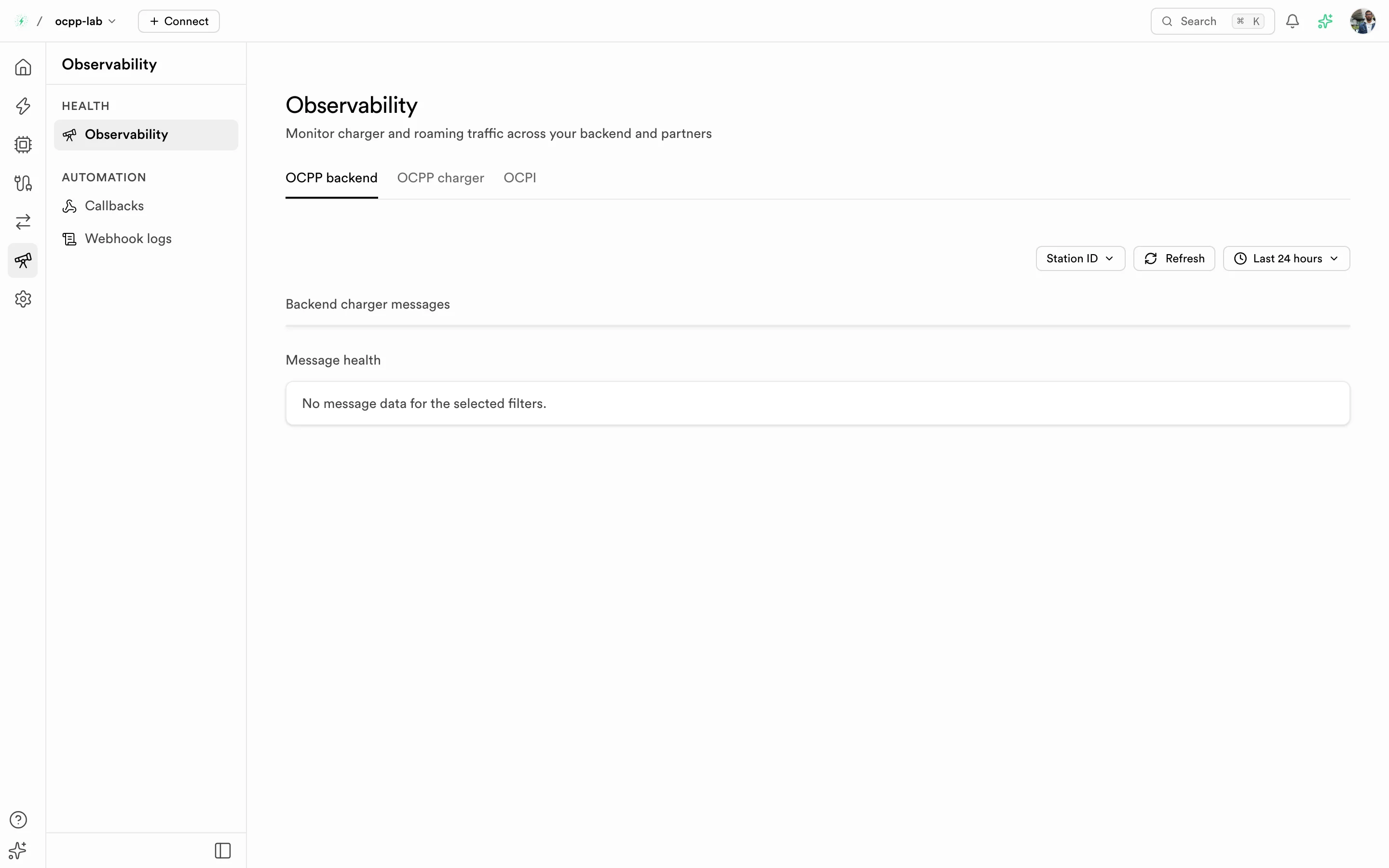
Observability — pick a source tab, then filter by station or partner and time range.
- Pick a source tab:
- OCPP backend — messages between your chargers and your CSMS, filtered by Station ID
- OCPP charger — messages from your lab chargers, filtered by Virtual charger
- OCPI — roaming requests, filtered by Partner ID
- Set the time range (for example Last 24 hours) and, if needed, one station or partner.
- Read Message health: each service shows Healthy, Unhealthy, or No data, with when it was last seen. The tab label counts unhealthy services.
No data means no messages arrived in that range — it is not a healthy result. Widen the range or clear the station filter before drawing conclusions.
Observability is included on some plans only. On other plans the page shows Upgrade required with your current plan, the plan that includes it, and View plans.
Send events to your systems
Path: Observability → Callbacks → Add destination.
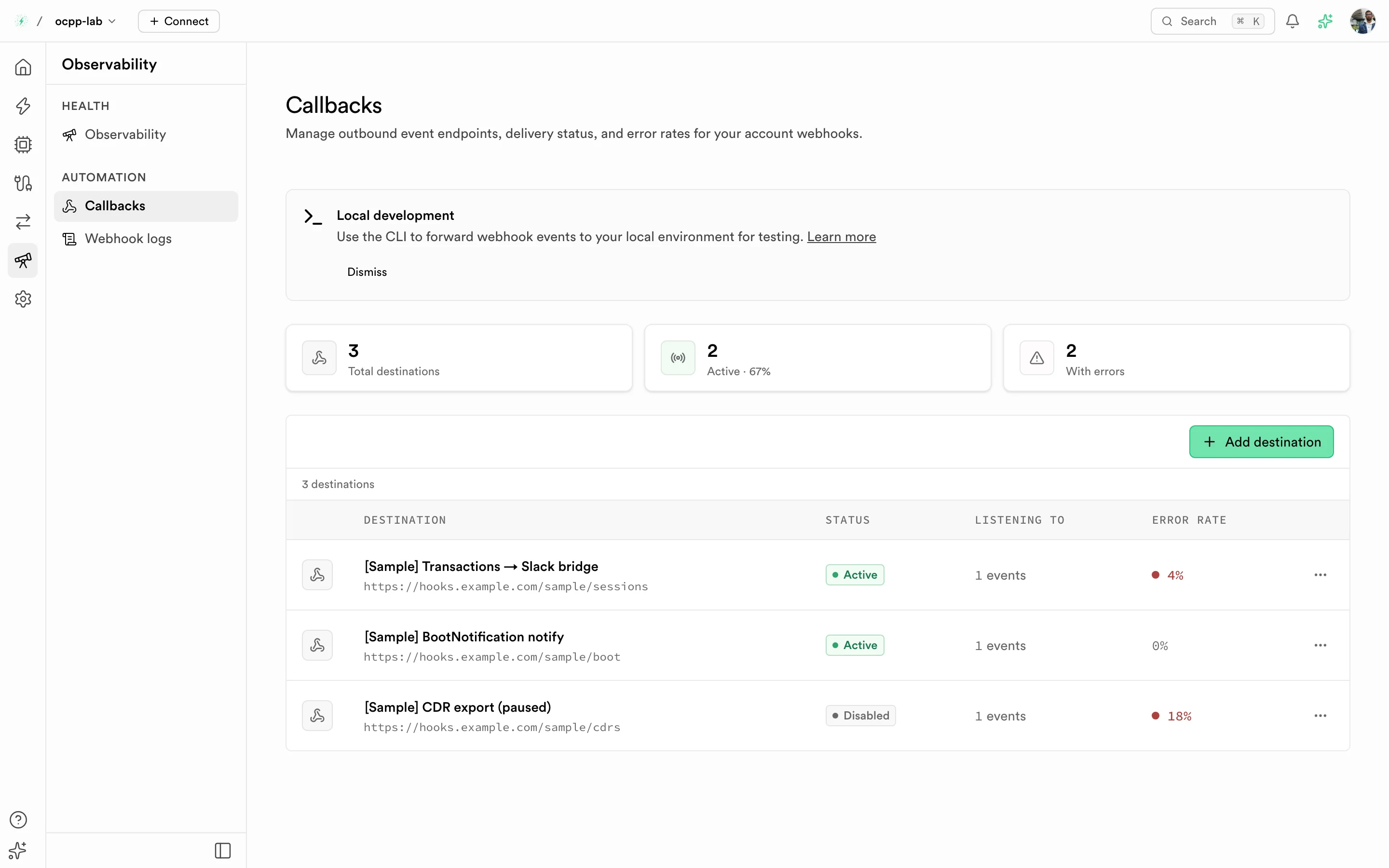
Callbacks — each destination listens to one event and shows its status and delivery error rate.
Each destination sends an HTTP request when one event happens. Full setup, the event list, and the request format: Webhooks.
Debug a silent destination
Path: Observability → Webhook logs.
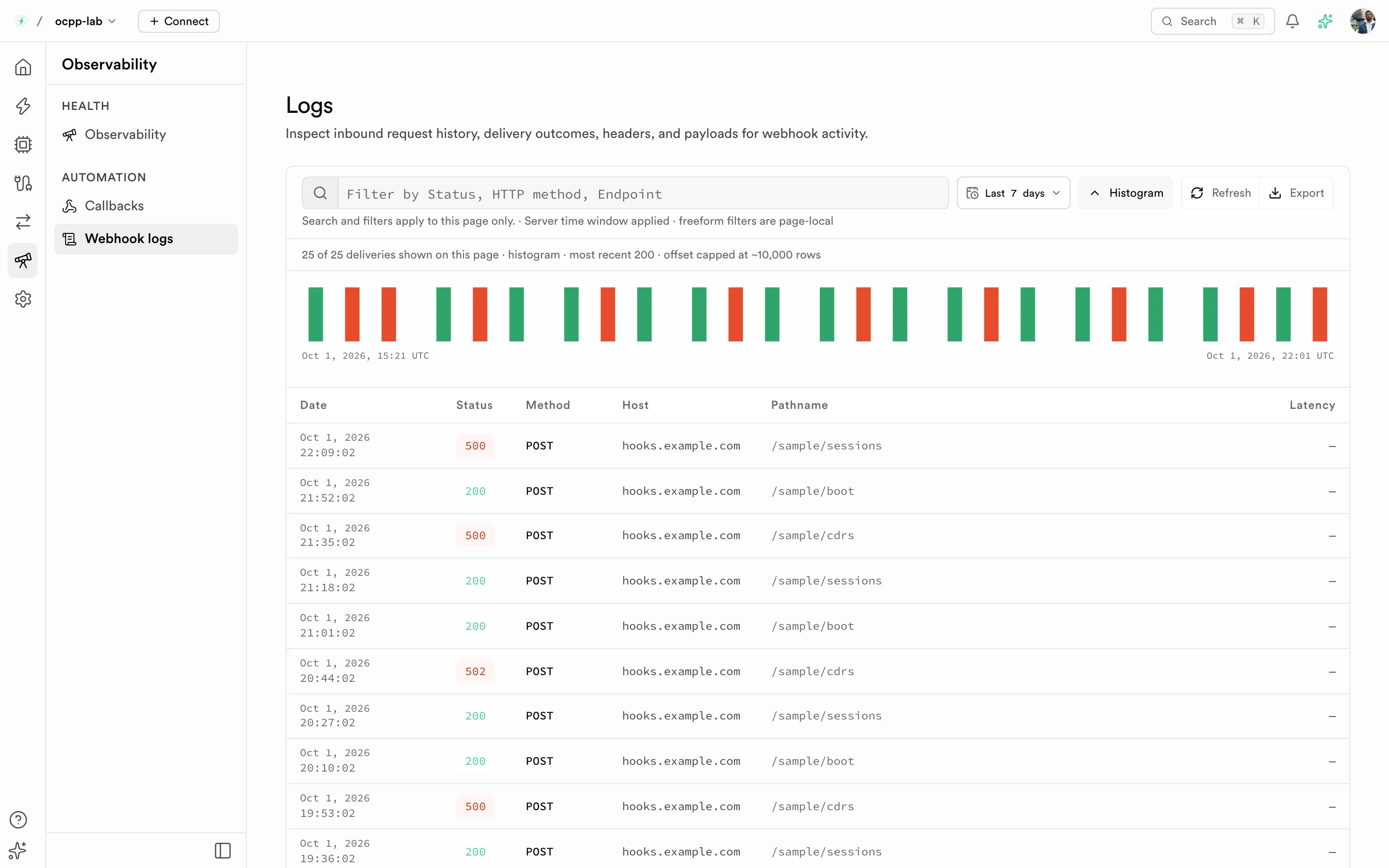
Webhook logs — one row per delivery attempt. Red bars and 5xx statuses are failed deliveries.
- Widen the time range from the toolbar if the list is empty.
- Open a row to see the HTTP status, delivery status, path, error message (for example
Timed out after 5000ms), and a note on the response body. - Fix your endpoint, then wait for the next event — failed deliveries are not retried.
Related
- Webhooks — events, request format, and endpoint checklist
- Virtual charger — the lab chargers behind the OCPP charger tab