Managed chargers
Watch connection state, heartbeats, faults, and OCPP version across your fleet, and add or act on chargers.
Managed chargers is the inventory of every charge point in your organization, with its live connection state. It is the first page of the Charging management area.
Path: /dashboard/chargers
Sidebar: Charging management → Managed chargers
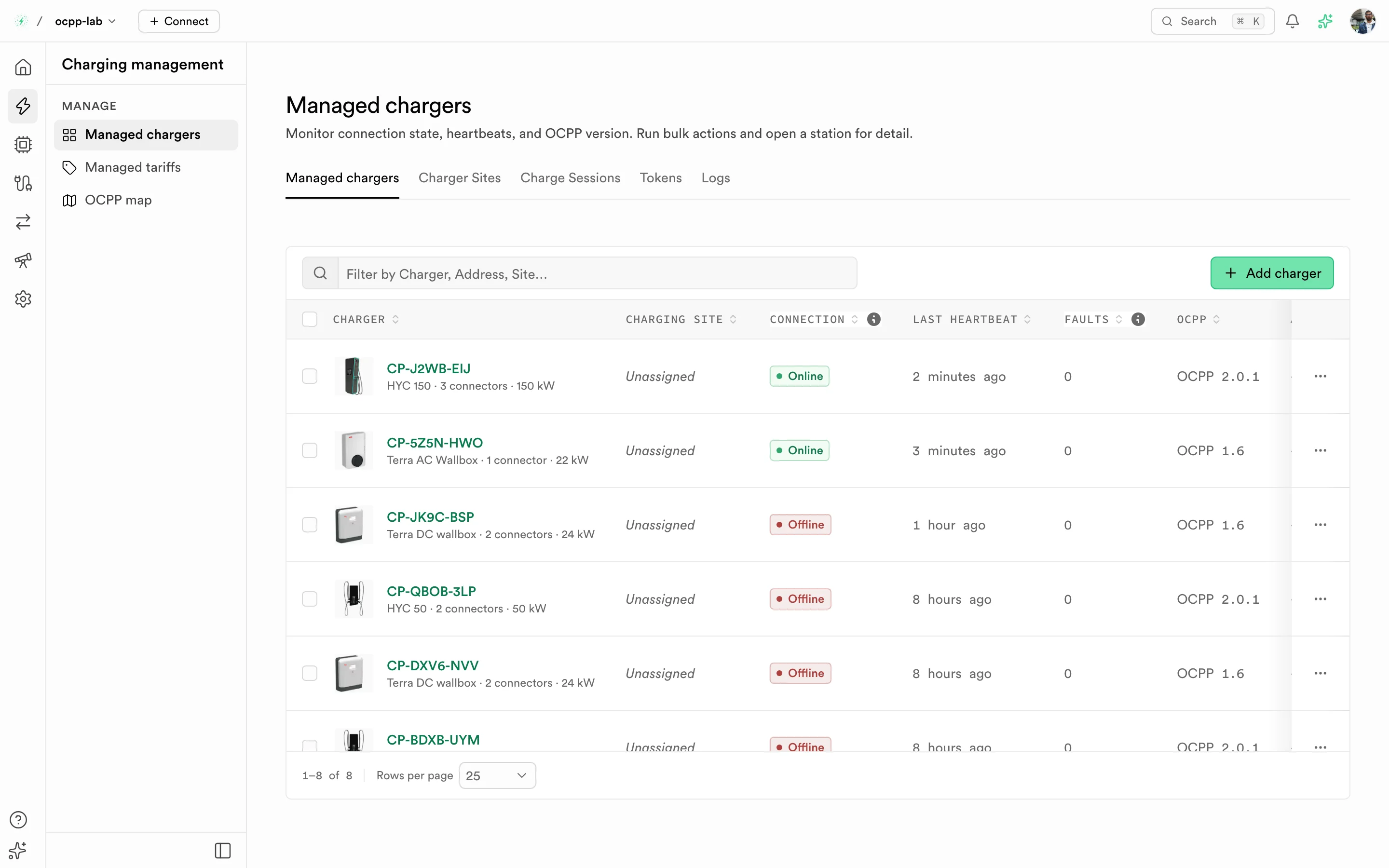
Managed chargers. Each row shows the charger, its site, connection state, last heartbeat, connector faults, and OCPP version.
Before you start
- You are signed in to the Dashboard and the right organization is selected in the top bar.
- To see a charger here, it must be registered. See Create a charger.
Page tabs
The page groups the fleet lists as tabs. Each tab has its own URL.
| Tab | Path | Guide |
|---|---|---|
| Managed chargers | /dashboard/chargers | This page |
| Locations | /dashboard/chargers?tab=sites | Locations |
| Charge Sessions | /dashboard/chargers?tab=sessions | Charge sessions |
| Tokens | /dashboard/chargers?tab=tokens | Authorizations |
| Logs | /dashboard/chargers?tab=logs | Logs |
Columns
| Column | What it shows |
|---|---|
| Charger | Identity (the OCPP charge point ID), catalog photo, model, connector count, and max power. Select the identity to open Charger detail |
| Location | Assigned location, or Unassigned. Select chargers and use Assign location to move several at once |
| Connection | Live state from the CSMS. See Connection states |
| Last heartbeat | Time since the last heartbeat. — when the charger has never sent one |
| Faults | Connectors reporting Faulted or an OCPP error code other than NoError. 0 means the connectors were checked and none is faulted |
| OCPP | Protocol version the charger was registered with: 1.6, 2.0.1, or 2.1 |
Connection states
| State | Meaning |
|---|---|
| Online | The charger has an authenticated session and a recent heartbeat |
| Offline | The charger connected before but is not connected now |
| Stale | Still marked online, but the last heartbeat is more than 15 minutes old |
| Never connected | Registered, but no heartbeat has arrived yet |
Connection state is set by the CSMS from real traffic. You cannot set it by hand, and a new charger always starts as Never connected.
Common tasks
Find a charger
Type in Filter by Charger, Address, Site… to narrow the list. Sort by any column header. When a filter matches nothing, the list says so and offers to clear the filter.
Add a charger
- Select Add charger.
- Fill the sheet. Every field is explained in Create a charger.
- Select Create charger. The new row appears as Never connected until the station boots against OCPPLab.
Send an OCPP action to a charger
- Open the row menu (
…) and select Send action. - Pick the action. The list matches the charger's OCPP version.
- Fill the fields and confirm.
The success message means the CSMS accepted the request. The charger's own reply appears in Logs and on the charger's detail page.
Act on several chargers
Select rows with the check boxes, then use the toolbar action. Actions that delete data ask you to confirm first.
Troubleshooting
| Symptom | What to check |
|---|---|
| The charger stays Never connected | The station must use the exact identity and the CPMS WebSocket URL from the create sheet. See Charger will not connect |
| The charger shows Stale | It is still registered as online but stopped sending heartbeats. Check its network, then Logs for the last frames |
| A charger is missing from the list | Check the organization selected in the top bar. Chargers belong to one organization |
| A banner says some chargers could not be loaded | One OCPP version's data failed to load. The rest of the list is still accurate; refresh in a moment |