Virtual charger playground
Send one OCPP call from a lab charger to your CSMS and see the real reply, including rejections.
The Playground sends a single OCPP call from a lab charger to your CSMS (Charging Station Management System) and shows what the CSMS answered. Use it to check how your CSMS handles one message before you build a workflow.
Path: rail → Virtual charger → Playground (/dashboard/virtual-charger/playground).
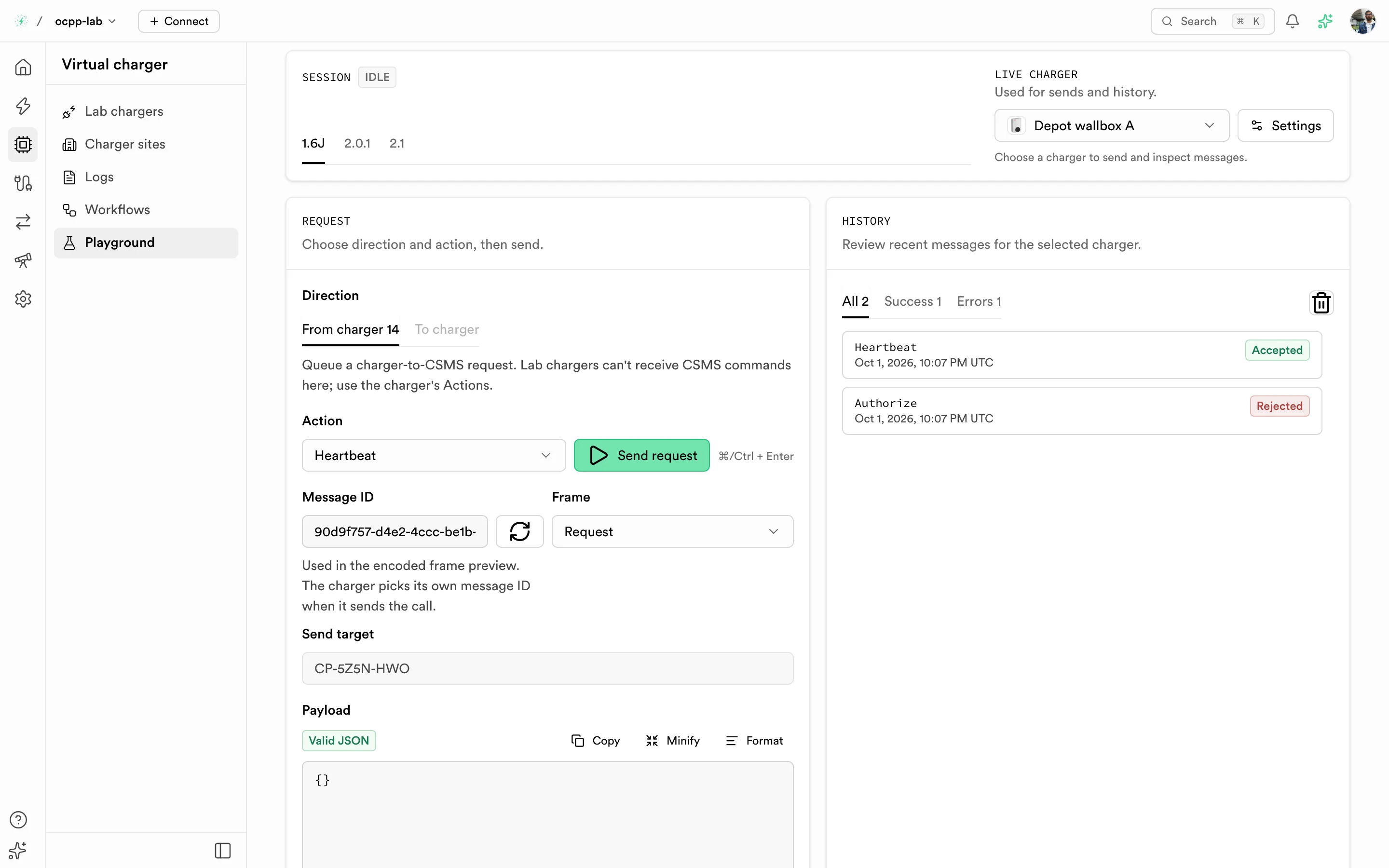
Playground — session and version tabs, the live charger, the request composer, and per-charger history.
Before you start
- A lab charger exists and shows Online in Lab chargers. Send is disabled while the selected charger is offline.
- Any RFID tag you plan to send is registered as Accepted in Authorizations. Your CSMS rejects tags it does not know.
Send a call
- Pick the OCPP version tab: 1.6J, 2.0.1, or 2.1. The tab sets the action catalog and the payload schemas.
- In Live charger, select the charger. Settings opens that charger's pages.
- Under Direction, keep From charger. To charger is disabled: lab chargers can't receive CSMS commands here. Use the charger's Actions or its Connectors tab for those.
- Choose an Action, for example
AuthorizeorHeartbeat. The Payload editor fills with a valid example. Edit it; the editor shows Valid JSON and a schema match such as Matches Authorize schema when the payload fits the selected action. - Select Request, or press
⌘/Ctrl + Enter.
Frame composes a Request (Call), Result (CallResult), or Error (CallError) and previews the encoded frame. Only Request can be sent. Message ID feeds that preview only: the charger picks its own message ID when it sends the call.
Read the result
A sent call appears in History as Waiting for reply. The Dashboard then reads the CSMS reply from the charger's own frames and updates the row:
| Result | Meaning |
|---|---|
| Accepted | The CSMS answered with an accepted status, or with a reply that has no status (for example Heartbeat). Counted under Success. |
| Rejected | The CSMS refused the call, for example idTagInfo.status: Invalid for an unknown tag, or answered with a CallError. Counted under Errors, with the reason. |
| No reply recorded | No reply arrived within 60 seconds. The charger may be offline. |
A queued call is never shown as accepted: acceptance only comes from the CSMS reply. A call that could not be sent at all also lands under Errors, with the error message. Screen readers announce each final result, for example "Authorize: Rejected".
Open a row to inspect it. The detail sheet shows the charger, direction, frame, command ID, sent time (UTC), and result, then:
| Block | Contents |
|---|---|
| Request | The payload you sent. |
| CSMS reply | The CallResult body or CallError the CSMS returned, when found. |
| Charger outcome | The outcome status and reason. |
| Queue receipt (SDK) | The receipt from queuing the call. It proves the call was queued, not that the CSMS accepted it. |
Manage history
History is kept in this browser, per charger, and filtered with All, Success, and Errors. Clear history asks you to confirm (Clear history for followed by the charger name) and removes the saved messages for that charger only. Messages already sent are not affected.
Troubleshooting
| Symptom | What to check |
|---|---|
| Send is disabled | The selected charger is offline or not deployed. Start it from Lab chargers. |
Authorize comes back Rejected (Invalid) | Register the tag as Accepted in Authorizations, then test with a tag you register first. A lab charger caches a rejected tag, so the same tag stays rejected on that charger. |
| No reply recorded | Open Virtual charger logs and look for the outgoing frame and its reply. |