Virtual charger logs
Read the OCPP frames your lab chargers exchanged with the CSMS, see which reply answers which call, and spot refusals.
Logs lists the OCPP frames every lab charger in your organization sent and received. Use it to confirm what a charger sent and what your CSMS (Charging Station Management System) answered.
Path: rail → Virtual charger → Logs (/dashboard/virtual-charger/logs).
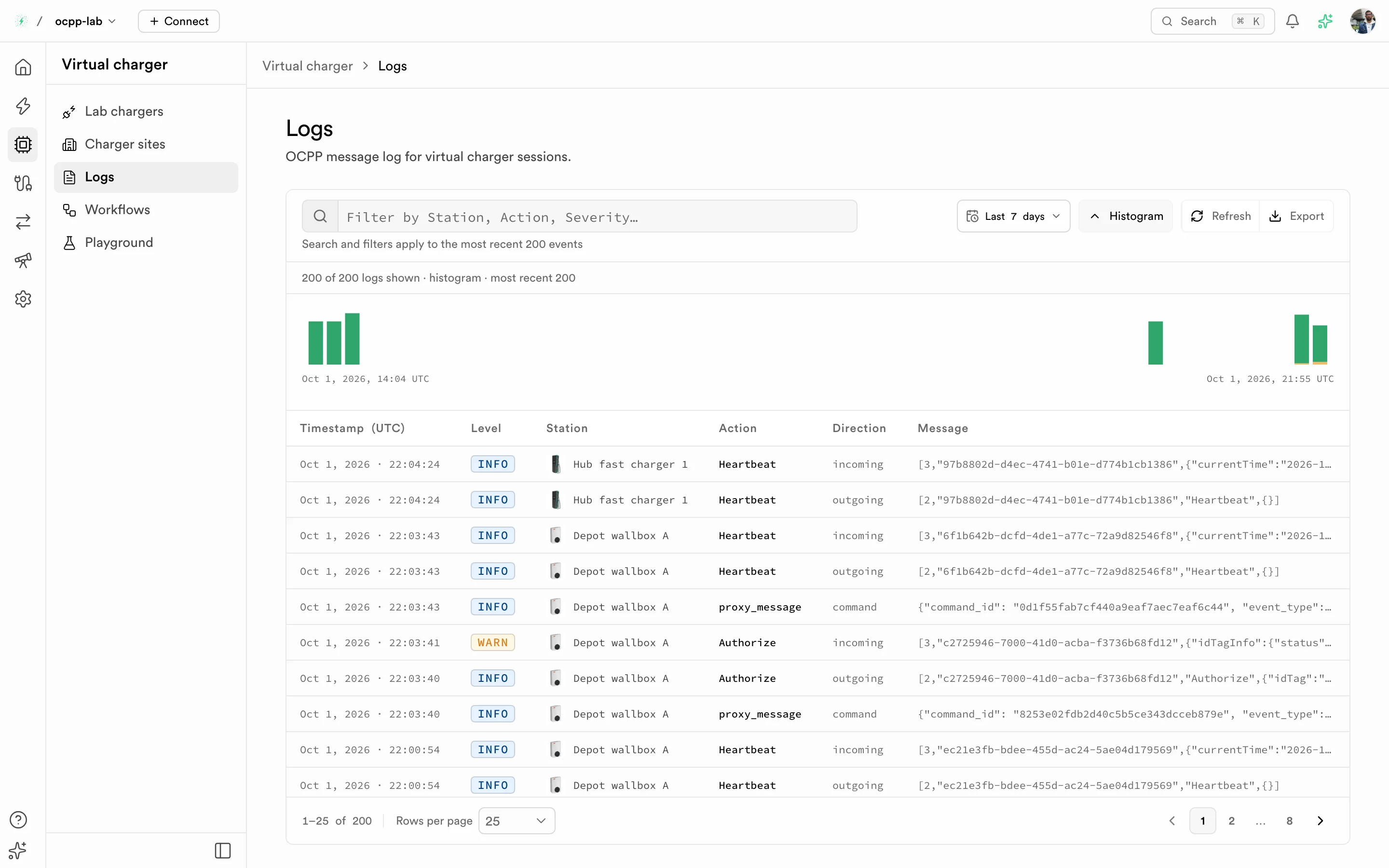
Logs — the event histogram above the frame list, with times in UTC.
What you see
| Column | Meaning |
|---|---|
| Timestamp (UTC) | When the frame was logged. The histogram axis uses UTC too. Select a timestamp to open that charger's Diagnostics page. |
| Level | INFO for normal frames, WARN for a reply that refuses the call, ERROR for a CallError. |
| Station | The lab charger that sent or received the frame. |
| Action | The OCPP action. Reply rows show the action of the call they answer. |
| Direction | outgoing from the charger, incoming from the CSMS, or command for a Dashboard command. |
| Message | The raw OCPP frame. Select a row for the full detail. |
A refusal reads WARN: for example an Authorize reply with idTagInfo.status: Invalid (OCPP 1.6) or idTokenInfo.status: Invalid (OCPP 2.0.1).
Filter and refresh
- The page loads the 200 newest frames for your organization. It does not stream: select Refresh to load newer frames.
- Search, filters, and the time range apply to those 200 frames.
- The time range defaults to Last hour. Pick a wider range in the range menu; the choice is kept in the URL as
logRange(for example?logRange=7d), so you can share the view. - Export downloads the shown rows as JSON. Histogram shows or hides the chart.
- When filters match nothing, the table keeps its header and offers Clear filters. When only the time range hides rows, it offers Show all events.