Roaming
Connect an OCPI roaming partner in the Dashboard, sync its data, inspect the Catalog, send remote commands, and read OCPI request logs.
Roaming is the Dashboard area for OCPI: the partners you exchange data with, the objects you exchange (locations, tokens, sessions, CDRs, tariffs), and the requests on the wire. Your own OCPI identity (party ID, country code) lives in Settings → Business details.
Before you start
- You are signed in to the Dashboard with permission to manage roaming
- Your organization has an OCPI party ID and country code in Business details
- From the partner: their versions URL and a Token A, or you are ready to send them yours
Never paste live OCPP passwords, OCPI tokens, or client certificates into tickets, chat, or public issues. Rotate anything that may have been exposed and use Dashboard or your secret store for operational credentials.
Where it lives
Path: rail → Roaming. The sidebar groups the pages by job:
| Section | Page | Route | What it does |
|---|---|---|---|
| Access | Overview | /dashboard/roaming/overview | Setup checklist, your OCPI versions URLs, and shortcuts to the roaming tools |
| Access | Handshakes | /dashboard/roaming/handshakes | Every OCPI credentials handshake: who connected, which version, and which tokens are live |
| Access | Roaming partners | /dashboard/roaming | Partner identities, roles, OCPI versions, and status. A Partner operations tab lists each role you hold with a partner. |
| Map | OCPI map | /dashboard/maps/ocpi | Published OCPI locations with coordinates |
| Data | Catalog | /dashboard/ocpi/locations | Locations, Tokens, Sessions, CDRs, EVSEs, Connectors, and Tariffs as tabs |
| Data | Sync jobs | /dashboard/roaming/sync | Scheduled and on-demand pull and push per module |
| Data | Deliveries | /dashboard/roaming/deliveries | OCPI Sessions and CDRs your chargers owe roaming eMSPs, and whether each one arrived |
| Logs area | Roaming (OCPI) | /dashboard/logs/ocpi | Every OCPI HTTP request to and from partners |
| Remote actions | Commands | /dashboard/ocpi/commands | Send START_SESSION, STOP_SESSION, and other commands to a partner CPO |
| Testing (Beta) | Playground, Workflows, Data generator, Test cases | /dashboard/roaming/… | Lab tools — see Roaming testing |
OCPPLab speaks OCPI 2.1.1 and OCPI 2.2.1, the published EV Roaming Foundation versions. Some pages also show a 2.3.0 product schema (bookings); it is not a published OCPI version.
Connect a partner
Path: Roaming → Roaming partners → New partner.
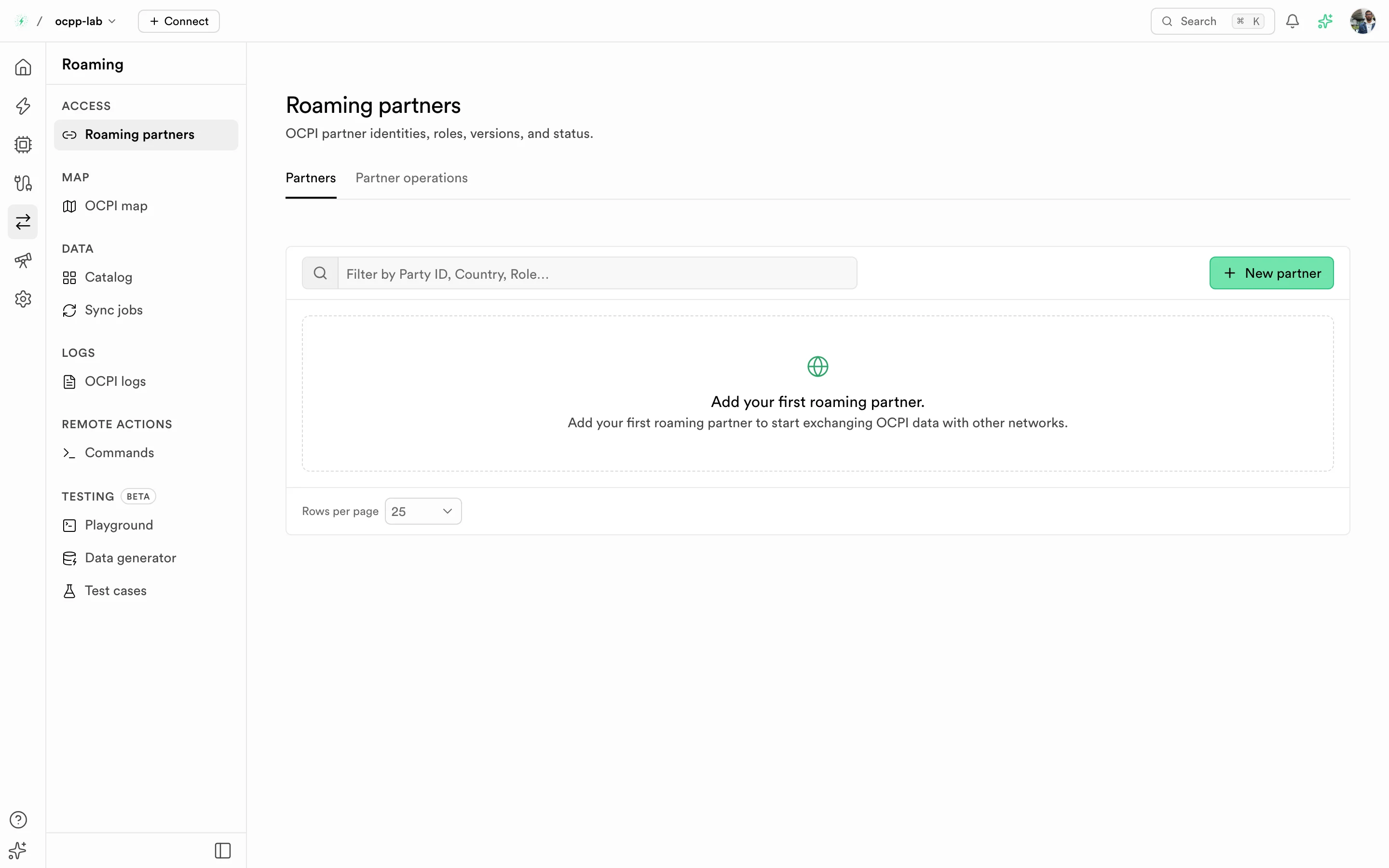
Roaming partners — one row per partner role, with the OCPI version and connection status.
Create the partner
Select New partner. Enter the partner's party ID, country, and role, pick the OCPI version you agreed on, and paste their versions URL and Token A.
Run the credentials handshake
The sheet walks through the credentials handshake: OCPPLab calls the partner's versions URL, registers, and stores Token B and Token C. If the exchange fails, the sheet shows the partner's OCPI
status_messagewith the request and response logs; fix the versions URL or token and select Retry credential exchange.Check the partner operation
Open the Partner operations tab. The operation shows the partner's role and Active when the handshake completed. The role shown is the partner's; you act as the opposite role (a CPO partner means you send eMSP requests).
Result: the partner is listed as Active and you can create sync jobs, send commands, and run test cases against it.
Country is shown as ISO 3166-1 alpha-2 (NL). OCPI 2.1.1 sends alpha-3 (NLD) on the wire; OCPPLab converts it.
Publish your chargers
Partners receive only the chargers you publish. For each charger:
- Place it on a location: Chargers → the charger → Edit → Location. The location must have Publish on (Catalog → Locations).
- Turn on Publish to roaming in the same sheet (or when you create the charger), then Save changes.
- Link a tariff to its connectors: Tariffs → the tariff → Apply.
Saving pushes the location to every connected partner. Turning Publish to roaming off sends that charger's EVSEs to partners as REMOVED. Published chargers show a Roaming badge in the charger list, and Roaming → Overview checks each step.
Inspect exchanged data
Path: Roaming → Catalog. Catalog opens on Locations; the other modules are tabs.
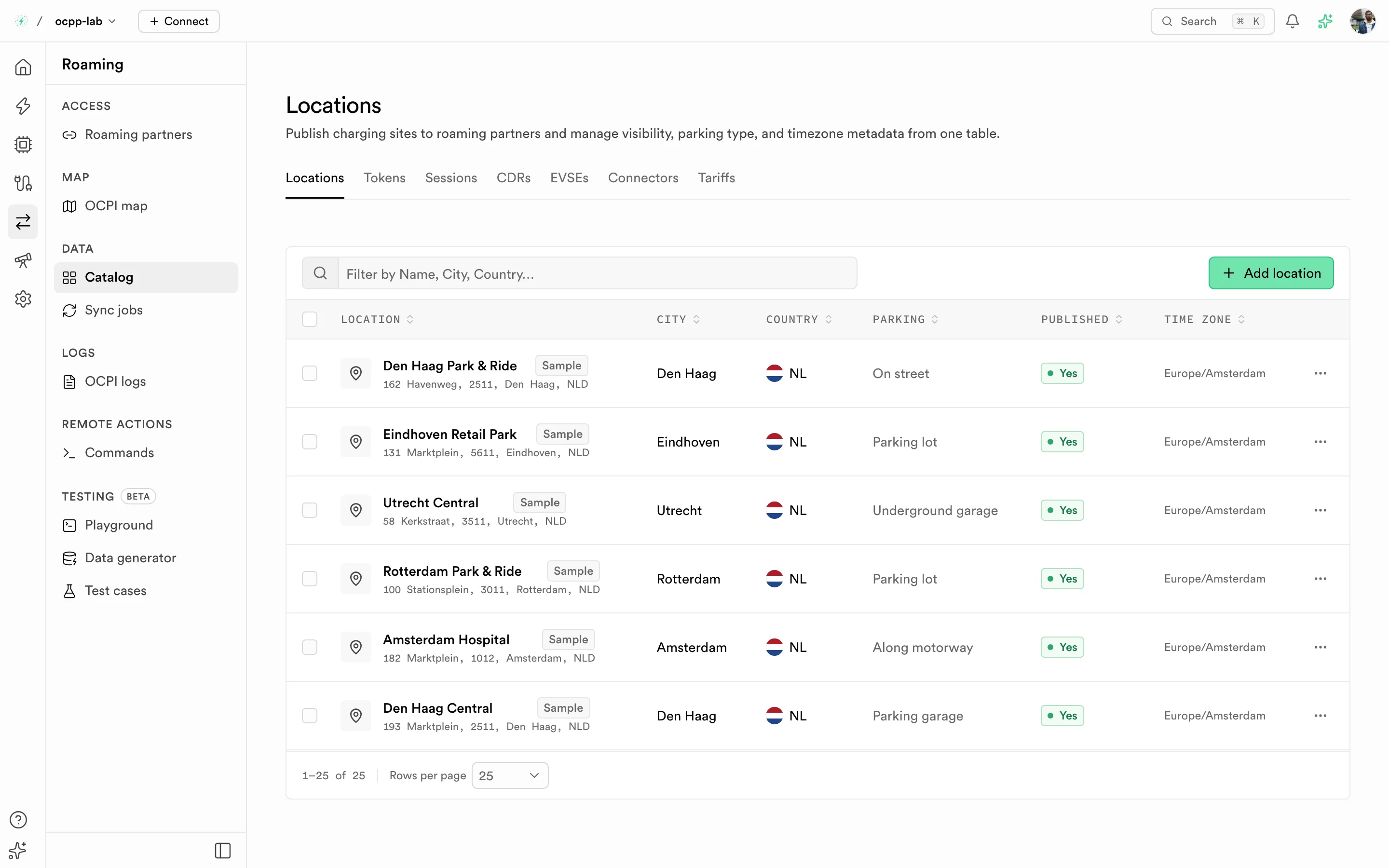
Catalog · Locations — the other OCPI modules are tabs under the title. Add location publishes a new site.
| Tab | Route | Typical use |
|---|---|---|
| Locations | /dashboard/ocpi/locations | Confirm sites you publish or receive |
| Tokens | /dashboard/ocpi/tokens | Check a driver's token was received and is valid |
| Sessions | /dashboard/ocpi/sessions | Follow a roaming session while it runs |
| CDRs | /dashboard/ocpi/cdrs | Reconcile billing after a session ends |
| EVSEs | /dashboard/ocpi/evses | Check EVSE status reported to partners |
| Connectors | /dashboard/ocpi/connectors | Check plug type and power per connector |
| Tariffs | /dashboard/ocpi/tariffs | Check prices published with locations |
Rows open a detail sheet with the full OCPI object. Locations with coordinates also appear on the OCPI map.
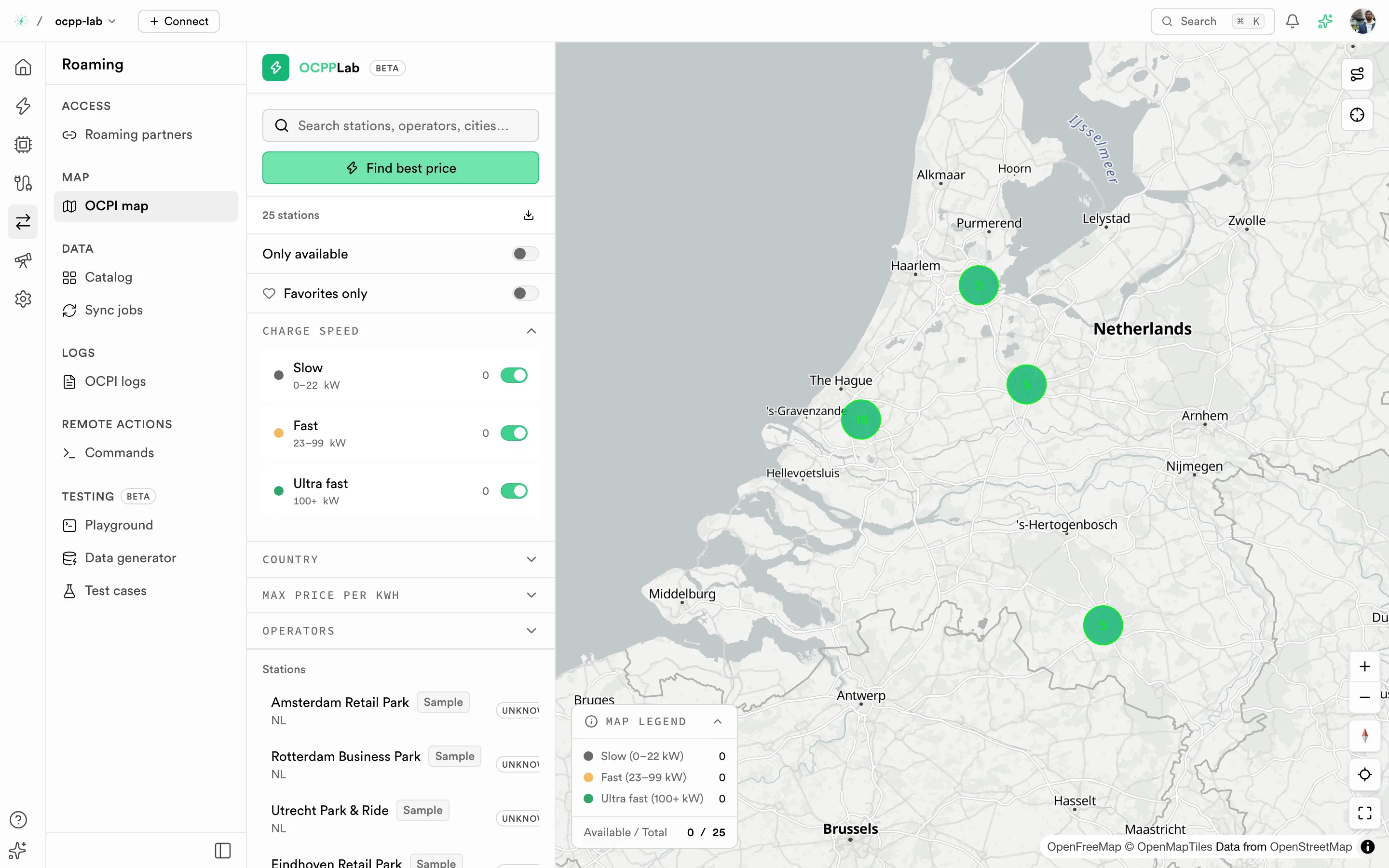
OCPI map — locations with coordinates, clustered by area. Sample rows from the Data generator carry a Sample badge.
Keep data in sync
Path: Roaming → Sync jobs.
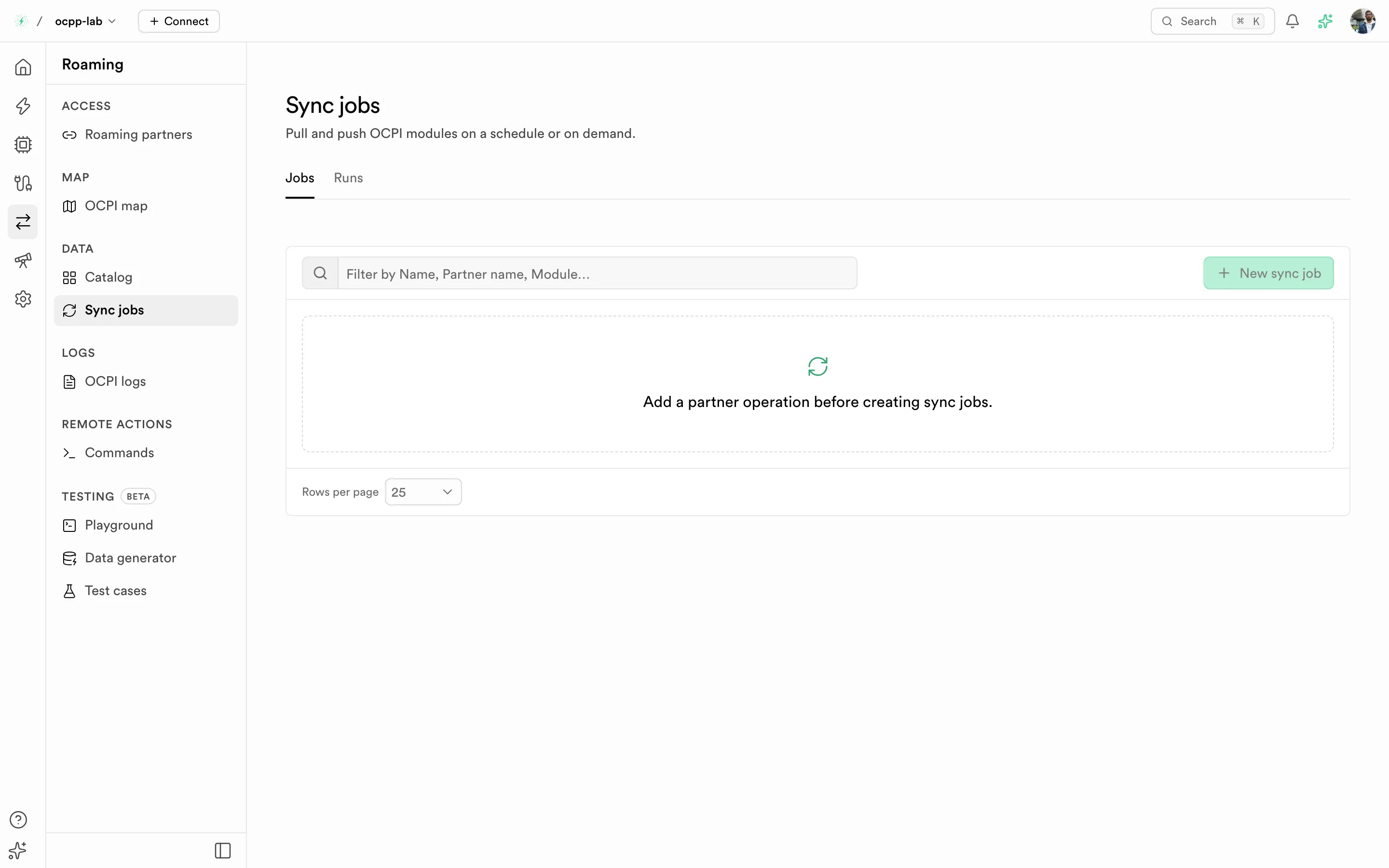
Sync jobs — each job pulls or pushes one module for one partner operation. Runs lists every execution.
- Select New sync job (available once a partner operation exists).
- Pick the partner operation, the module (for example Locations or CDRs), and the direction: Pull fetches the partner's objects into the Catalog, Push sends yours.
- Run it now or on a schedule. The Runs tab lists each run with its record count; the job's Logs tab shows the partner's inbound requests for that module.
Check deliveries to eMSPs
Path: Roaming → Deliveries.
Your Locations, Tariffs, Sessions, CDRs, and command results go to roaming partners through push queues. When a driver with a roaming eMSP's token charges at one of your chargers, that eMSP gets the OCPI Session and, once it ends, the CDR. Each row is one object still on a queue.
A push partners accepted leaves the queue, so it shows only in Logs → Roaming (OCPI).
| State | Meaning |
|---|---|
| Waiting | Still on the push queue. It is retried automatically; Next try shows when. |
| Refused | The OCPI gateway refused it, or it waited too long. It is not retried until you push it again. |
- Filter by State or Type. Use View to hide columns you don't need.
- The list shows the latest changes first; the Load … more button below the table fetches older ones.
- Owners and admins can tick rows. Push again rebuilds the ticked Refused rows from your current data and sends them again. Delete removes the ticked rows from the queue, so they are never sent; a later change to the same object queues a new delivery.
Send a remote command
Path: Roaming → Commands → Send command.
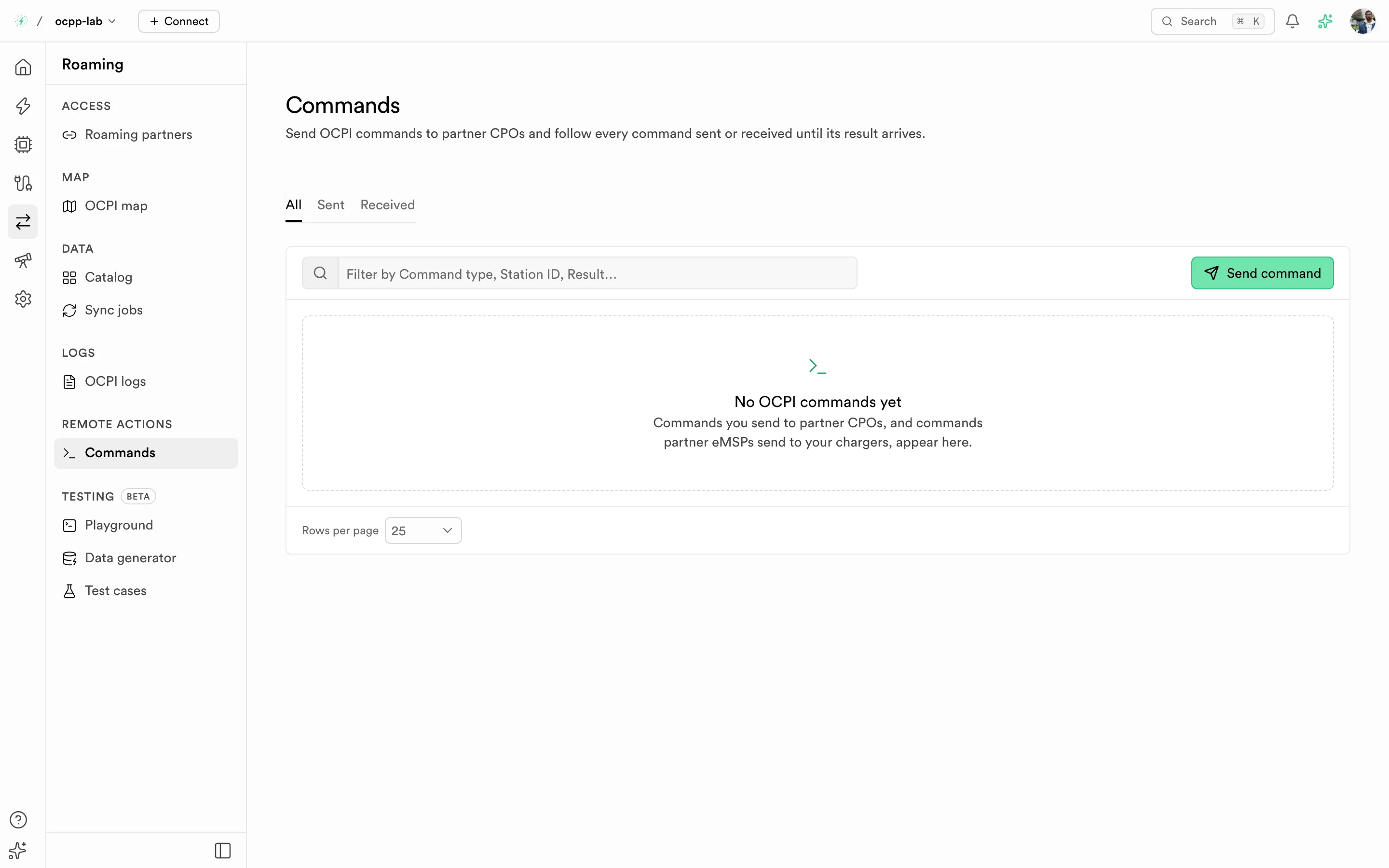
Commands — Sent are commands you sent to partner CPOs; Received are commands partners sent to your chargers. A command stays Pending until the partner's result arrives.
- Pick a partner whose role is CPO, then the command.
- Pick the targets from that partner's data (location, EVSE, connector, token). Fields change with the command and OCPI version — for example OCPI 2.1.1 has no
CANCEL_RESERVATION. - Review the request body, confirm, and watch the status. A command is done when the partner's asynchronous result arrives, not when the request is accepted.
Read OCPI request logs
Path: rail → Logs → Roaming (OCPI) (/dashboard/logs/ocpi).
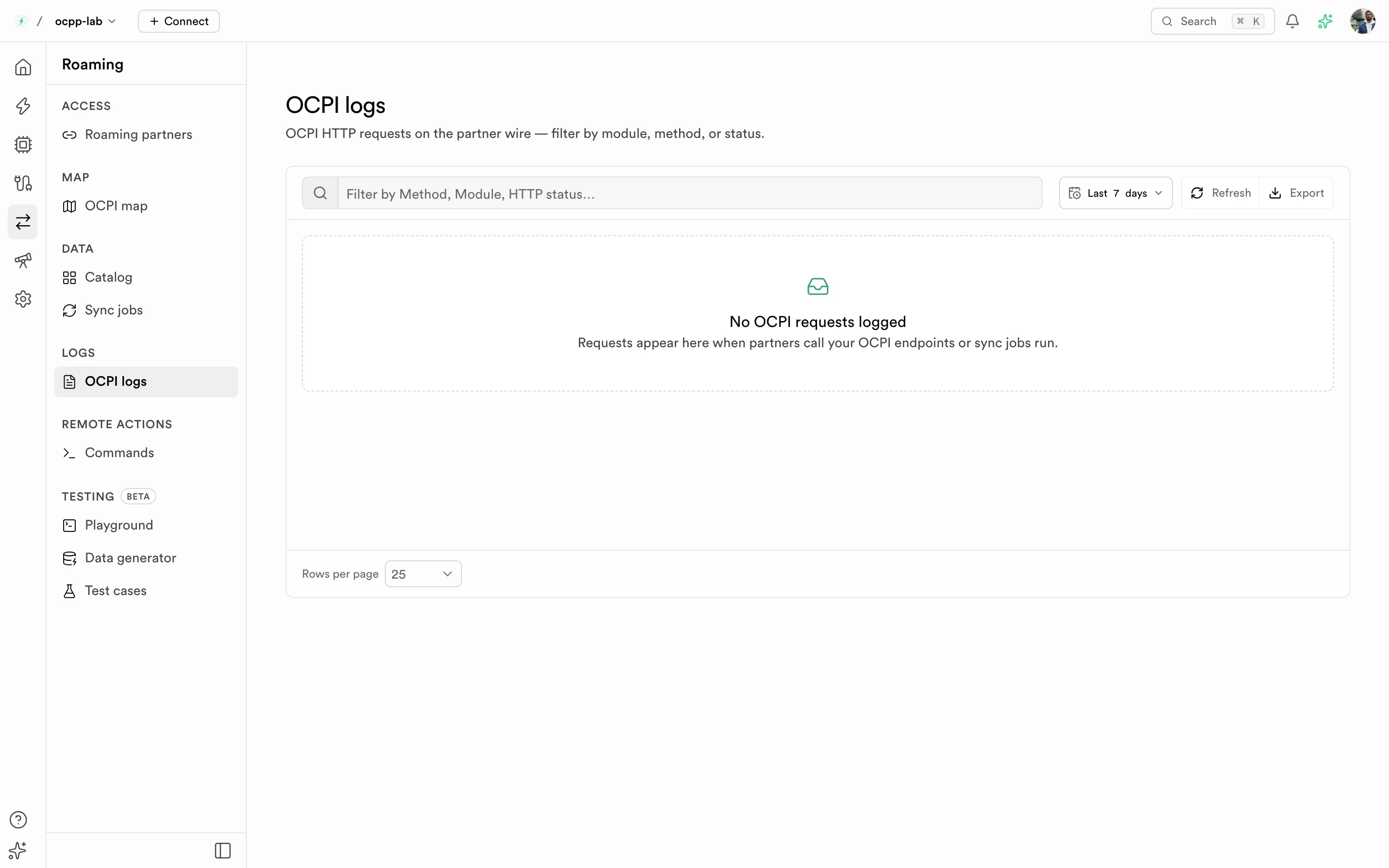
OCPI logs — every OCPI HTTP request, with status, method, host, path, and latency.
Use the logs when a sync run fails or a partner reports missing data. Times are UTC. Filters apply to the loaded page; widen the time range from the toolbar to look further back.
Related
- Roaming testing — Playground, Data generator, and Test cases
- OCPI overview
- OCPI credentials
- Business details — your OCPI party identity