Authorizations
Manage the RFID tags, contract IDs, and local tokens your chargers authorize against, and fix rejected starts.
Authorizations is the token list your chargers check when a driver starts a session: RFID tags, contract IDs (eMAID), and other local identifiers, each with the outcome the charger should get.
Path: /dashboard/authorizations, also shown as the Tokens tab at /dashboard/chargers?tab=tokens
Sidebar: Charging management → Managed chargers → Tokens tab
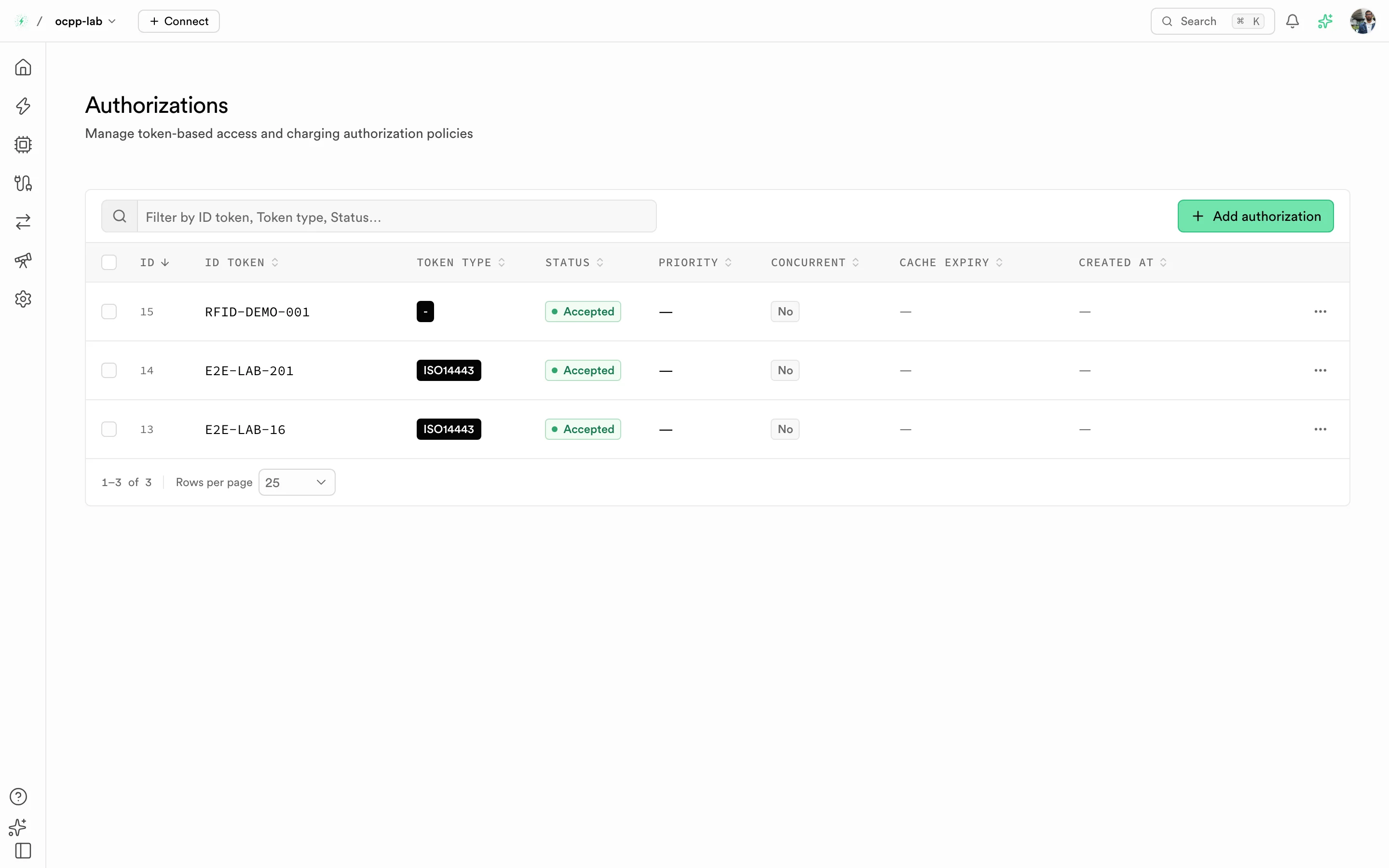
Authorizations. Each row is a token, its type, the status chargers receive, and its charging behavior.
This list is for OCPP authorization on your own chargers. Roaming tokens from OCPI partners live under Roaming, and proxy tokens under Proxy.
Columns
| Column | What it shows |
|---|---|
| ID | Row number |
| ID token | The identifier the charger presents, for example an RFID UID or an eMAID contract ID |
| Token type | Format of the identifier, for example ISO14443 for most RFID cards |
| Status | The answer chargers get: Accepted, Blocked, Expired, Invalid, or ConcurrentTx |
| Priority | Optional charging priority. — when not set |
| Concurrent | Whether the token may run more than one session at a time |
| Cache expiry | When chargers should stop trusting a cached answer. — when not set |
| Created at | When the row was added. — when unknown |
Add a token
-
Select Add authorization.
-
Under Token identity, enter the ID token and choose a Token type.
Token type Typical use ISO14443Most RFID cards ISO15693Long-range RFID cards eMAIDContract IDs such as DE*ABC*E12345*1CentralTokens issued by the central system LocalTokens defined on the charger KeyCodePIN codes MacAddressVehicle MAC addresses NoAuthorizationFree charging without a token -
Under Access rules, set Status. Use Accepted to let the token charge.
-
Optional: set Charging priority and turn on Concurrent transaction if the same token may charge on several connectors at once.
-
Select Add authorization. The token appears in the list.
To change or remove a token, open its row menu and select Edit or Delete. Deleting asks you to confirm.
Expected result
A driver presenting an Accepted token can start a session, and the session appears on Charge sessions. In Logs, the charger's Authorize request gets a reply with "status": "Accepted".
Troubleshooting a rejected start
- Open Logs and find the charger's
Authorizerequest and its reply. - If the reply says
Invalid, the token is not in this list. Add it. - If it says
BlockedorExpired, edit the token and set Status to Accepted. - If it says
ConcurrentTx, the token is already charging elsewhere. Stop that session or turn on Concurrent transaction. - Retry with the same token. Some chargers cache a rejection; if the charger keeps rejecting a token you have fixed, clear the charger's authorization cache or try a fresh token.