Managed tariffs
Create CPO tariffs for your organization, set energy, time, and session prices, and apply them to chargers.
Managed tariffs holds the CPO tariffs your organization charges: currency, price components, and the OCPI party that owns them. Applying a tariff to chargers prices their sessions, and partners can read it over OCPI.
Path: /dashboard/tariffs
Sidebar: Charging management → Managed tariffs
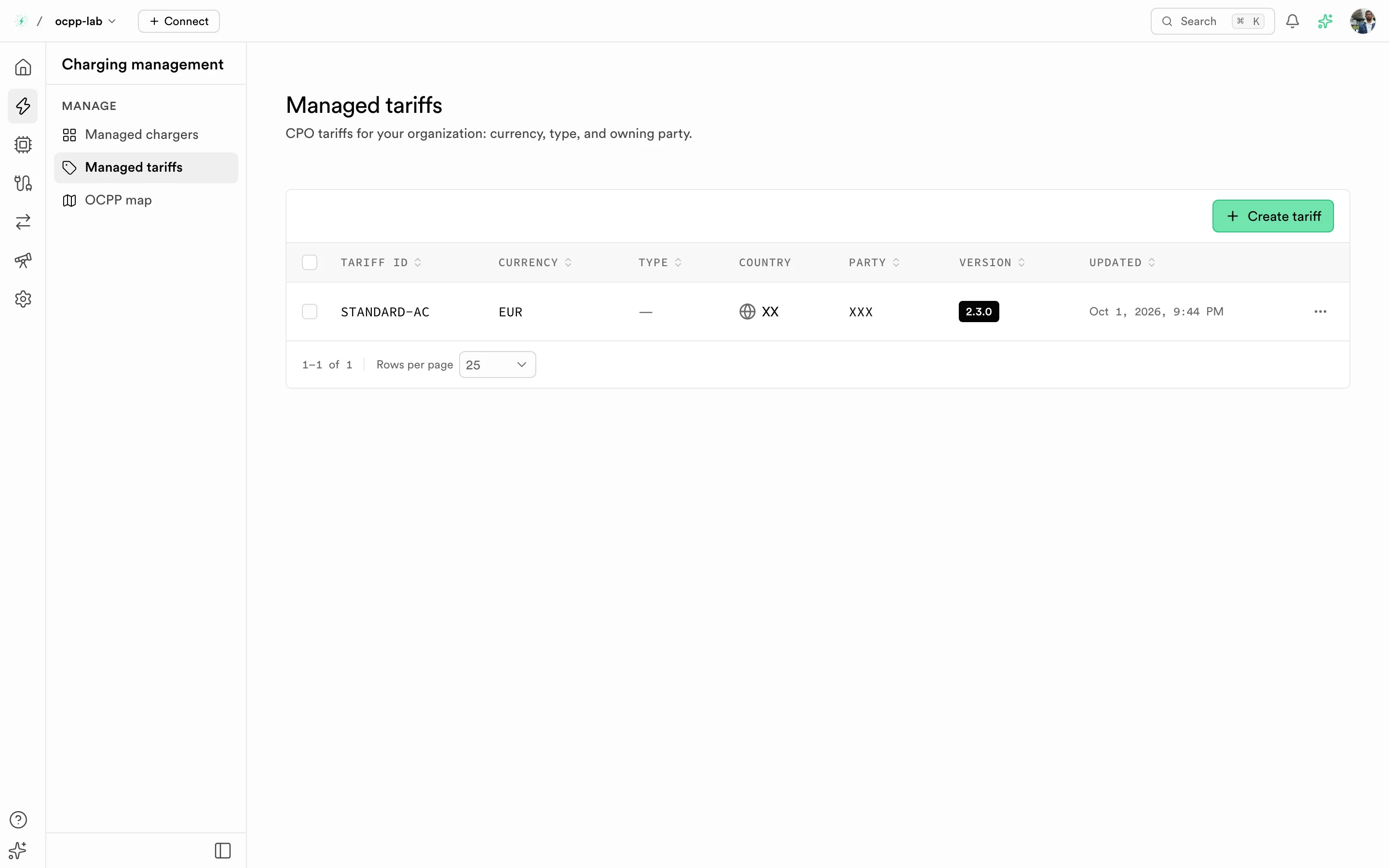
Managed tariffs. Each row is a tariff with its currency, owning party, OCPI version, and last update.
Before you start
- Your organization is on the Starter plan or higher. On a lower plan the page explains the upgrade instead.
- Your OCPI party ID and country are set in Settings → Business details. The sheet links you there if they are missing. See Workspace.
- To apply a tariff, the chargers must be assigned to a charger site that belongs to the same party, and have connectors.
Columns
| Column | What it shows |
|---|---|
| Tariff ID | Unique ID within your party, for example STANDARD-AC |
| Currency | ISO 4217 code, for example EUR |
| Type | Optional OCPI tariff type. — when not set |
| Country and Party | The OCPI party that publishes the tariff |
| Version | OCPI version the tariff is stored for |
| Updated | Last change |
Create a tariff
-
Select Create tariff.
-
Under Tariff, fill these fields:
Field Required What it is Tariff ID Yes Up to 36 letters, digits, dots, dashes, or underscores. It cannot change later, because partners reference it Currency Yes 3-letter ISO 4217 code Type No OCPI tariff type, or Not set Tax included No Whether partners should display prices with VAT Description No Text drivers see, for example 0.35 EUR/kWh, no session fee -
Under Price components, set at least one price. Prices exclude VAT and use the tariff currency. Leave a component empty to omit it.
Component Charged per Energy price kWh delivered Time price Hour of charging Session fee Session, as a flat fee -
Select Create tariff. The tariff appears in the list.
To change prices later, open the row menu and select Edit. The tariff ID stays fixed.
Apply a tariff to chargers
- Open the tariff's row menu and select Apply to chargers.
- Select the chargers to price, or Select all applicable. Each selected charger links the tariff to every ready connector under it.
- Select Apply tariff.
If the list says no chargers are ready, assign the chargers to a site of the same party and add their connectors first.
Expected result
New sessions on those chargers show a Cost on Charge sessions and in the session's cost breakdown.
Troubleshooting
| Message or symptom | What to do |
|---|---|
| Set your OCPI party ID and country in Business details before creating tariffs. | Fill them in Settings → Business details, then retry |
| Add at least one price component. | Enter an energy, time, or session price |
| Use a 3-letter ISO 4217 code, for example EUR. | Fix the currency code |
Sessions still show Cost — | The tariff is not applied to that charger, or the session started before you applied it |