Create a charger
Register a physical charge point in the Dashboard, field by field, and get the URL the station connects to.
This tutorial registers a physical charge point with Create charger. When you finish, the charger exists in your organization and you have the exact URL and subprotocol to configure on the station.
To run a charge point without hardware, use Virtual charger instead.
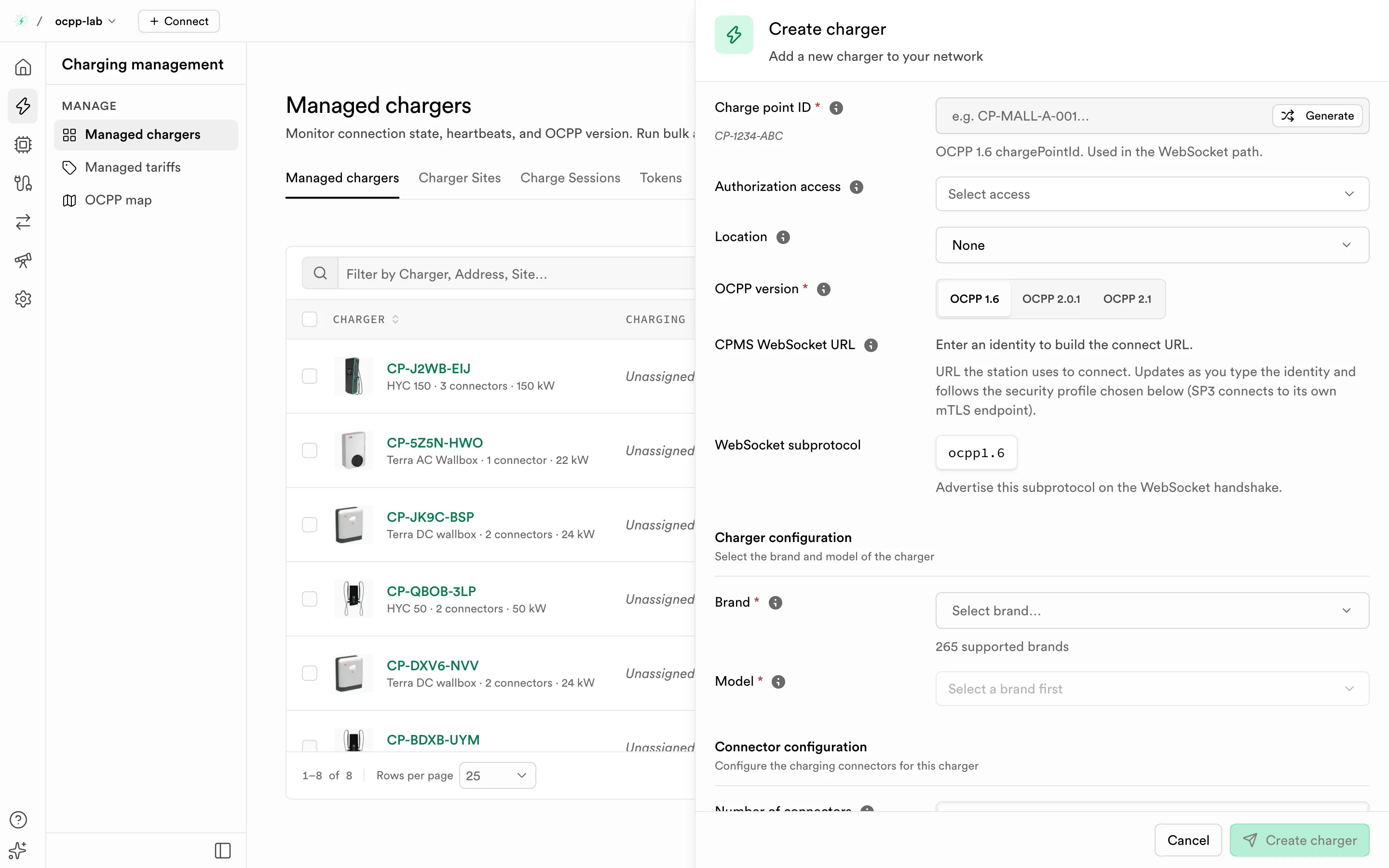
Create charger. The sheet shows the connect URL and subprotocol as you fill the identity and OCPP version.
Before you start
- You are signed in to the Dashboard with permission to manage chargers.
- You know the station's OCPP version: 1.6, 2.0.1, or 2.1.
- Optional: a location exists, if you want to assign the charger now.
Never paste live OCPP passwords, OCPI tokens, or client certificates into tickets, chat, or public issues. Rotate anything that may have been exposed and use Dashboard or your secret store for operational credentials.
Open the sheet
Path: Charging management → Managed chargers → Add charger.
The sheet opens on the right. Required fields are marked *.
Fill the fields
Identity, access, and version
| Field | Required | What it is | How to set it |
|---|---|---|---|
| Charge point ID | Yes | The OCPP 1.6 chargePointId. For 2.0.1 and 2.1 the label reads Charging station identity. It is the last segment of the WebSocket path and the HTTP Basic Auth username | Type an ID you can also set on the station, such as CP-MALL-A-001, or select Generate. It must match the station exactly (case-sensitive) and be unique in the organization |
| Authorization access | No | Who may authorize sessions on this charger | Public, Private, or Restricted |
| Location | No | The location the station belongs to | Pick a location, or leave None and assign it later |
| OCPP version | Yes | The protocol the station speaks | Select OCPP 1.6, OCPP 2.0.1, or OCPP 2.1. It must match the station's firmware setting |
| CPMS WebSocket URL | Read-only | The URL the station connects to, in the form wss://ocpp.ocpplab.io/ocpp/{organization}/{identity} | Updates as you type the identity. Copy it into the station's CSMS URL setting |
| WebSocket subprotocol | Read-only | ocpp1.6, ocpp2.0.1, or ocpp2.1 | The station must advertise this value on the WebSocket handshake |
Charger configuration
| Field | Required | What it is |
|---|---|---|
| Brand | Yes | Manufacturer from the hardware catalog |
| Model | Yes | Model of that brand. Selecting it fills connector defaults and the catalog photo |
Brand and model are inventory data. They do not replace the identity.
Connector configuration
OCPP 1.6 describes a charger as a set of connectors. OCPP 2.0.1 and 2.1 add a level: Station → EVSE → Connector, so the section is called EVSE and connector configuration for those versions.
| Field | Required | What it is |
|---|---|---|
| Number of EVSEs | 2.0.1 and 2.1 only | How many EVSEs the station has |
| Number of connectors | Yes | How many physical connectors the charger has. Each one gets its own tab |
| Max charging power (kW) | Yes | Maximum output of the connector, for example 7.4, 11, 22, or 50 |
| Connector type | Yes | Plug type, for example Type 2, CCS2, or CHAdeMO |
Fill Max charging power and Connector type for every connector tab.
Security
The Security profile sets how the charger authenticates to the gateway. The shared gateway defaults to profile 2.
| Profile | Transport | Authentication |
|---|---|---|
| 0 | ws:// | None. Only for trusted networks and labs |
| 1 | ws:// | HTTP Basic Auth. A password is generated and shown once |
| 2 | wss:// (TLS) | HTTP Basic Auth. A password is generated and shown once. Recommended |
| 3 | wss:// (TLS) | Client certificate signed by the station CA. Connects through the separate mTLS endpoint |
You can change the profile later from the charger's security settings. The gateway then disconnects the charger so it reconnects under the new rules.
Connection state
Live connection is read-only and starts as Never connected. The CSMS sets it once the station sends an authenticated heartbeat.
Steps
Set the identity and version
Enter the charge point ID or select Generate, then choose the OCPP version the station uses. The CPMS WebSocket URL and subprotocol update as you type.
Assign access and a site
Choose Authorization access if you know the site policy, and pick a Location so the charger appears on the OCPP map and site filters.
Describe the hardware
Select Brand and Model, then set power and connector type on each connector tab.
Choose a security profile
Keep profile 2 for the shared gateway unless the station needs another profile.
Create the charger and copy its connect details
Select Create charger. A dialog shows the identity, OCPP version, subprotocol, and CPMS WebSocket URL to configure on the station. Copy any generated password now; it is shown once.
Expected result
The charger appears on Managed chargers as Never connected. After the station connects with the same identity, URL, and subprotocol, it turns Online and its heartbeat time starts updating.
| Next step | Guide |
|---|---|
| Configure the station | Connect a charger |
| Watch connection state | Managed chargers |
| Inspect connectors and configuration | Charger detail |
Common errors
| Message or symptom | What to do |
|---|---|
| Identity is required | Enter a charge point ID |
| A charger with this identity already exists | Another charger in the organization uses this ID. Choose a different one |
| Value exceeds maximum length | Shorten the identity, brand, or model |
| Select OCPP 1.6, 2.0.1, or 2.1. | Pick the station's OCPP version |
| Enter a valid power value in kW | Use a number such as 22 |
| The charger stays Never connected | The station's identity, URL, subprotocol, or password does not match. See Charger will not connect |