Logs
Read the OCPP messages exchanged with your chargers to diagnose boots, rejected starts, and missing meter values.
Logs shows the OCPP frames exchanged between your managed chargers and OCPPLab: every request, its reply, and errors. Use it when the Dashboard shows a result you do not expect.
Path: /dashboard/logs/chargers
Sidebar: Logs → Managed chargers
The Logs area of the rail holds every log stream in one place. Pick a stream in the second sidebar:
| Stream | Route | What it shows |
|---|---|---|
| Proxy messages | /dashboard/logs/proxy | Charger-side OCPP frames the Proxy observed |
| Proxy backend | /dashboard/logs/backend | Backend-side proxy messages and upstream failures |
| Managed chargers | /dashboard/logs/chargers | OCPP frames across your managed chargers (this page) |
| Lab chargers | /dashboard/logs/virtual | OCPP frames from Virtual charger lab chargers |
| Roaming (OCPI) | /dashboard/logs/ocpi | OCPI HTTP requests to and from roaming partners |
| Proxy audit | /dashboard/logs/audit | Who changed proxy settings, and when (backends, chargers, routes, tokens, access) |
Older links such as /dashboard/chargers?tab=logs redirect here.
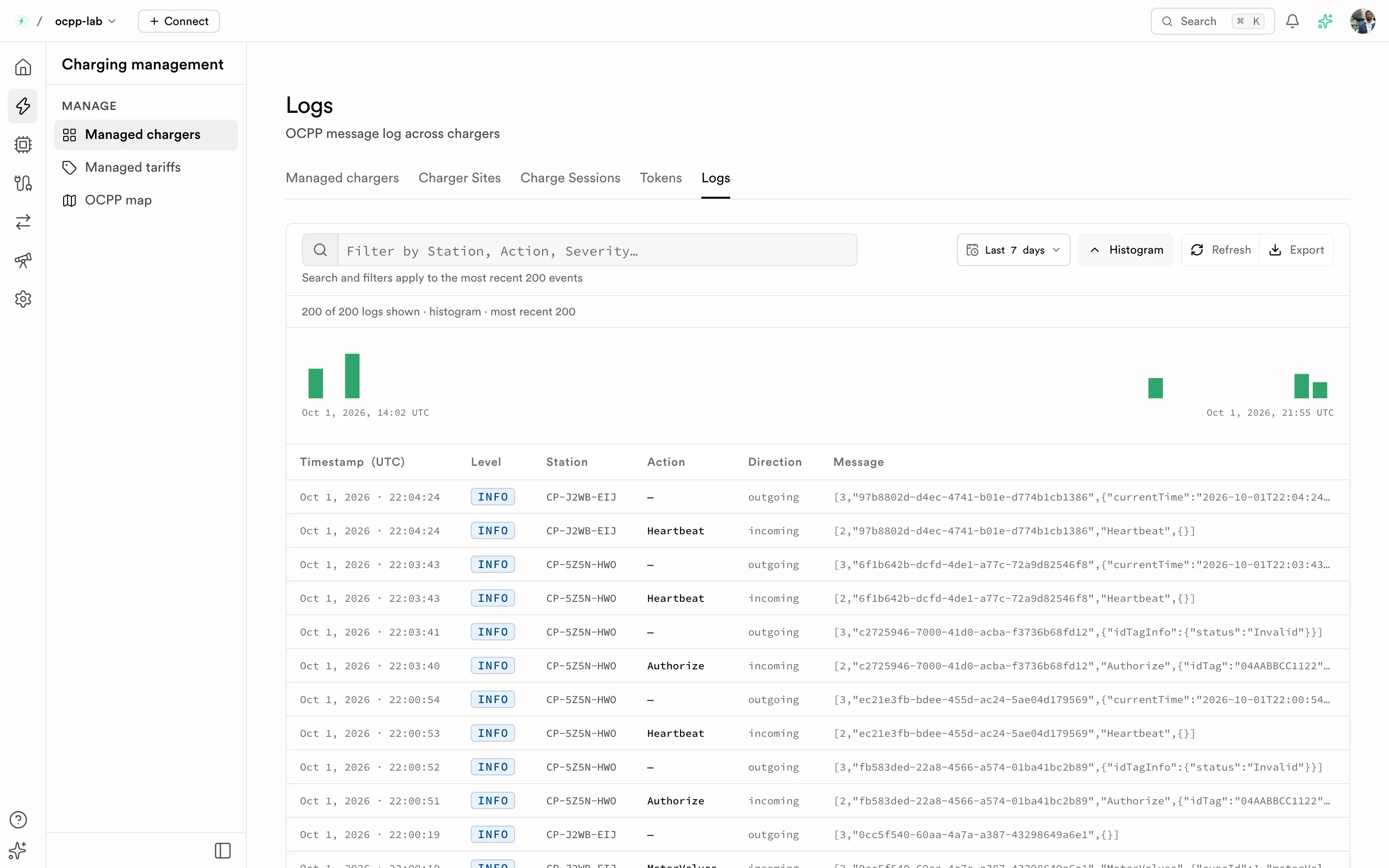
Logs. The histogram shows message volume over the selected window; each row is one OCPP frame with its station, action, direction, and payload.
For one charger only, open its Charger detail → Logs tab. For lab chargers, use Logs → Lab chargers.
How to read the list
| Column | What it shows |
|---|---|
| Timestamp (UTC) | When OCPPLab recorded the frame. Times are in UTC |
| Level | Severity OCPPLab recorded for the frame. Normal requests and replies are INFO |
| Station | Charge point identity |
| Action | OCPP action of a request, such as BootNotification, Heartbeat, or Authorize. Replies show —; match them to their request by message ID |
| Direction | incoming from the charger, outgoing to the charger |
| Message | The raw OCPP frame. Select a row to see the formatted payload |
An OCPP frame is a JSON array. [2, id, Action, payload] is a request, [3, id, payload] is its reply, and [4, id, code, description] is an error. A reply carries the same id as its request, so read the reply's payload to see whether the request was accepted. A refusal such as "status": "Invalid" is still logged as INFO.
The list loads the most recent 200 messages. Search, filters, and the time range apply to those messages.
Diagnose a problem
- Reproduce the issue: reboot the charger, start a session, or stop one.
- Open Logs and select Refresh.
- Type the charger's identity in Filter by Station, Action, Severity….
- Widen the time range with the range picker if the event is older than the last hour.
- Find the request and its reply, and compare with the table below.
| You are checking | Look for | Healthy reply |
|---|---|---|
| A charger that will not come online | BootNotification | "status": "Accepted" |
| A charger that shows Stale | Heartbeat | Replies with a currentTime |
| A rejected RFID start | Authorize | "status": "Accepted". Anything else means the token needs fixing in Authorizations |
| Missing energy on a session | MeterValues | Requests arriving during the session |
Use Export to download the loaded messages, for example to attach to a support ticket. Do not paste passwords or tokens with them.
When the list is empty
| What you see | What it means |
|---|---|
| No events in this time range | Older messages exist. Widen the range or select Show all events |
| No events match your filters | Your search or filters hide every row. Select Clear filters |
| No log events yet | No charger has exchanged messages yet. Connect a charger first |
Related
- Charger detail
- Proxy for wire logs between chargers and external backends
- Charger will not connect
- Authorizations