Virtual charger workflows
Chain OCPP calls from a lab charger, run them in order, and pass or fail each step on the real CSMS reply.
A workflow is a saved chain of OCPP calls that a lab charger sends to your CSMS (Charging Station Management System), one after another. Each step passes or fails on the reply your CSMS sends, so a run tells you whether your CSMS handles the scenario.
Path: rail → Virtual charger → Workflows (/dashboard/virtual-charger/workflows).
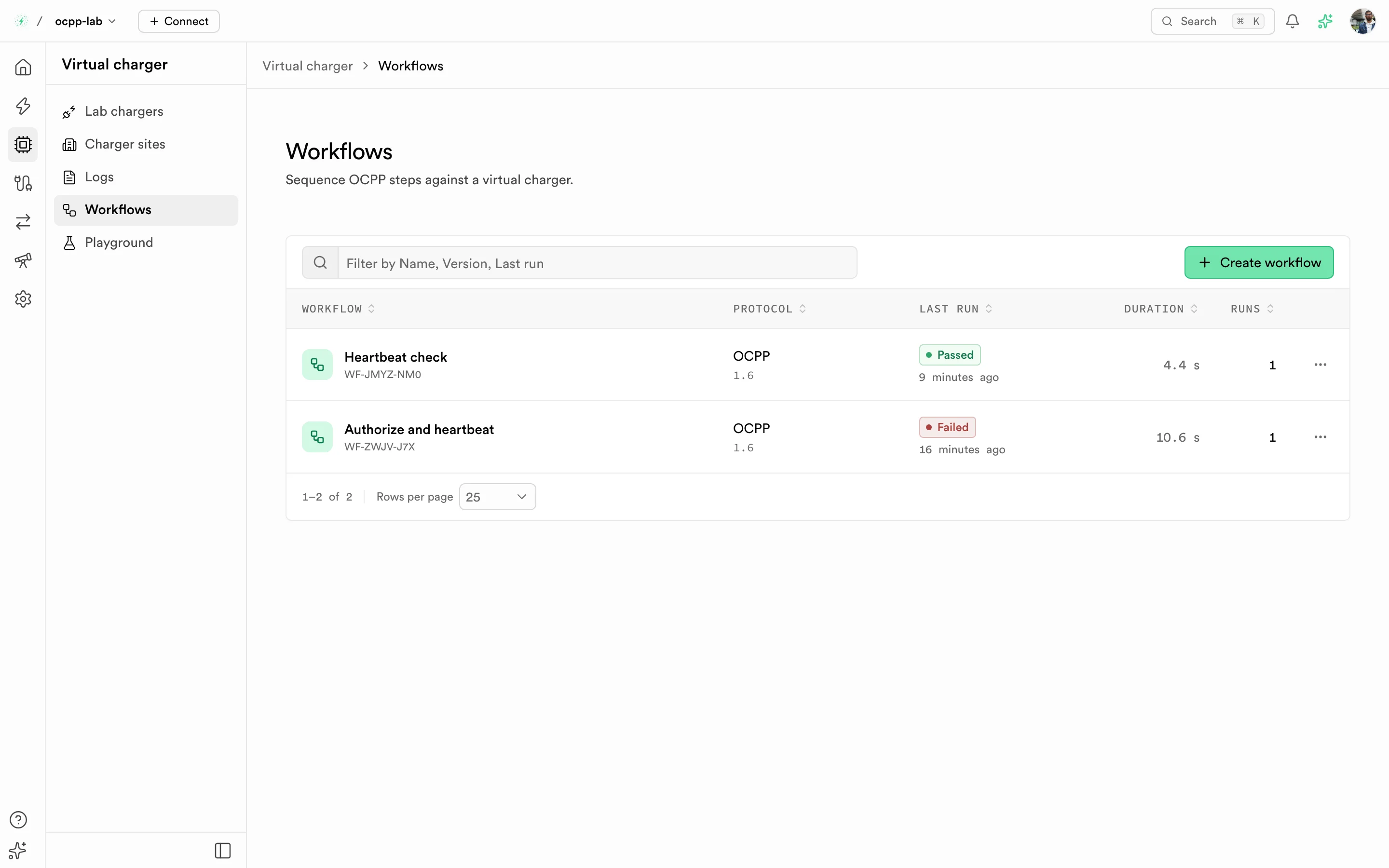
Workflows — each row shows the protocol, last run result, duration, and run count.
Before you start
- A lab charger on the OCPP version you want to test is Online. See Virtual charger.
- RFID tags used in
AuthorizeorStartTransactionsteps are registered as Accepted in Authorizations.
Create a workflow
- Select Create workflow.
- Enter a Name. Identity is optional; leave it empty and OCPPLab generates one.
- Choose the OCPP version. It sets the message catalog for the steps.
- Add an optional Description and comma-separated Tags, then select Create workflow.
The new workflow opens on its canvas.
Build the steps
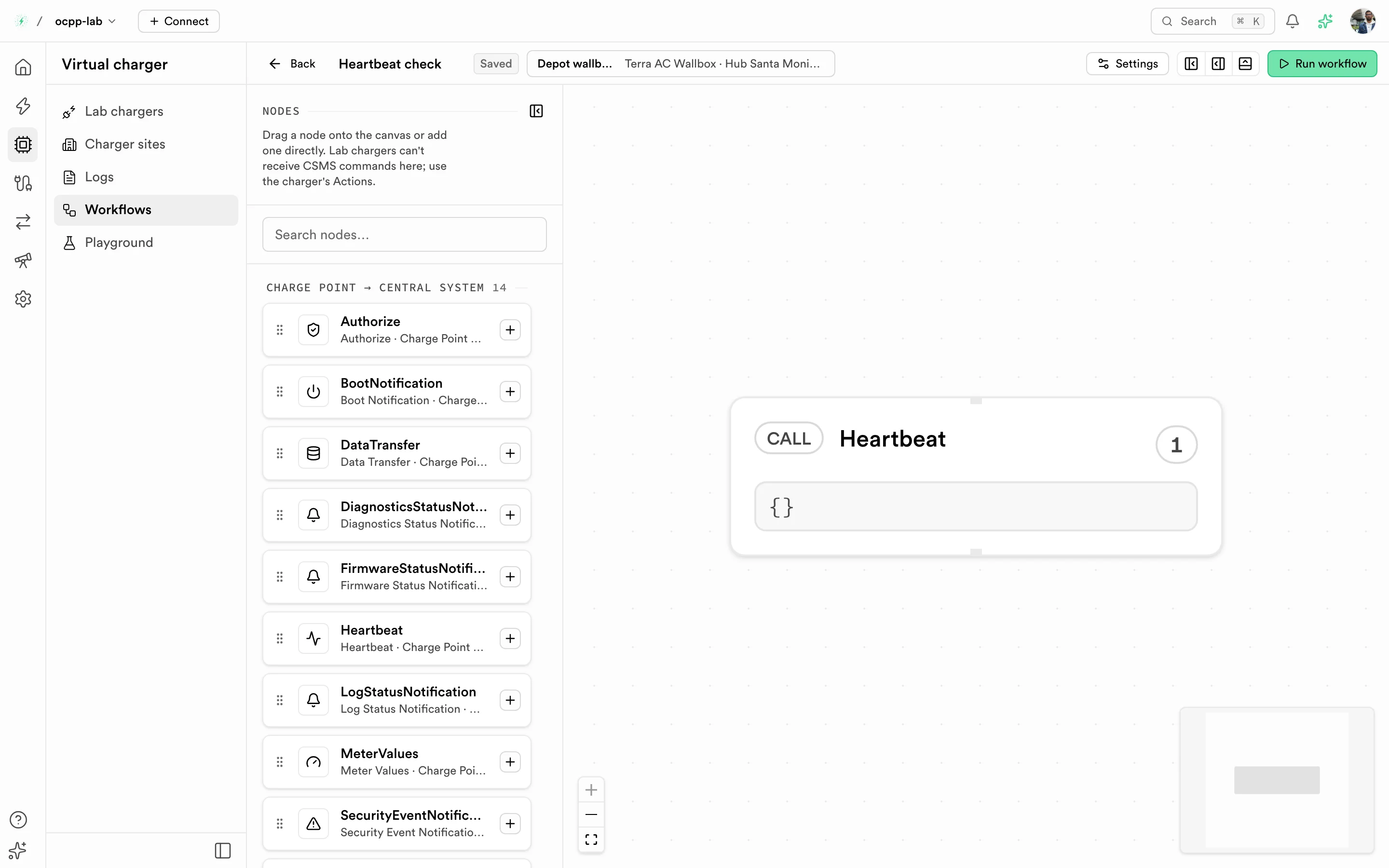
Workflow canvas — the node palette on the left, the step chain on the canvas, and Run workflow in the toolbar.
- The Nodes palette lists every charger-to-CSMS call for the workflow's OCPP version, plus the Start, Delay, and End flow steps. CSMS-to-charger commands are not offered: lab chargers can't receive them here.
- Select + on a palette item to append it below the last step and link it. If the chain ends with End, the new step goes before it. A step you drag onto the canvas stays where you drop it and is not linked.
- Select a step to edit its JSON payload in the configuration panel.
- Changes save automatically. The header shows Saving…, then Saved. If a save fails, a toast offers Retry.
Pick the charger
Select Settings, choose the Charger, and select Apply settings. Only chargers on the workflow's OCPP version are listed, so a 1.6 workflow never runs against a 2.0.1 charger.
Run it
Select Run workflow. The run follows the links from Start, or from the only step nothing links to. Canvas position does not change the order.
| What happens | Result |
|---|---|
| The CSMS answers with an accepted status, or with a reply that has no status | Step Passed |
The CSMS refuses the call (for example Invalid or Rejected) or returns a CallError | Step Failed with the reason, and the run stops |
| No reply within 30 seconds | Step Failed with "No reply … within 30 s" |
Before it sends anything, the run checks the chain. These block the run with a toast that names the steps involved:
- Steps not linked into the chain
- A step with more than one next step (branches are not supported)
- Links that loop back
- A CSMS-to-charger step saved earlier
Stop run asks the run to stop. The button reads Stopping… until the current step finishes, then the run is recorded as stopped. Only one run can be in progress at a time.
Read the run console
Open the Run console from the toolbar. It shows only the frames from the latest run, newest first. Reply rows carry the action they answer, and a refused reply (for example an Authorize answered Invalid) reads WARN. If a refresh fails, the console keeps the rows it already loaded and shows Run logs may be out of date with Retry.
Read the list
The Workflows list shows each workflow's last run result, its Duration, and its run count. A run recorded before steps were checked against the CSMS reply shows Unverified: select the info icon next to it for the reason, and run the workflow again to verify it.
Related
- Virtual charger playground — send one call before you build a chain
- Virtual charger logs — every frame across all lab chargers
- Virtual charger